Step 1
Start Setup
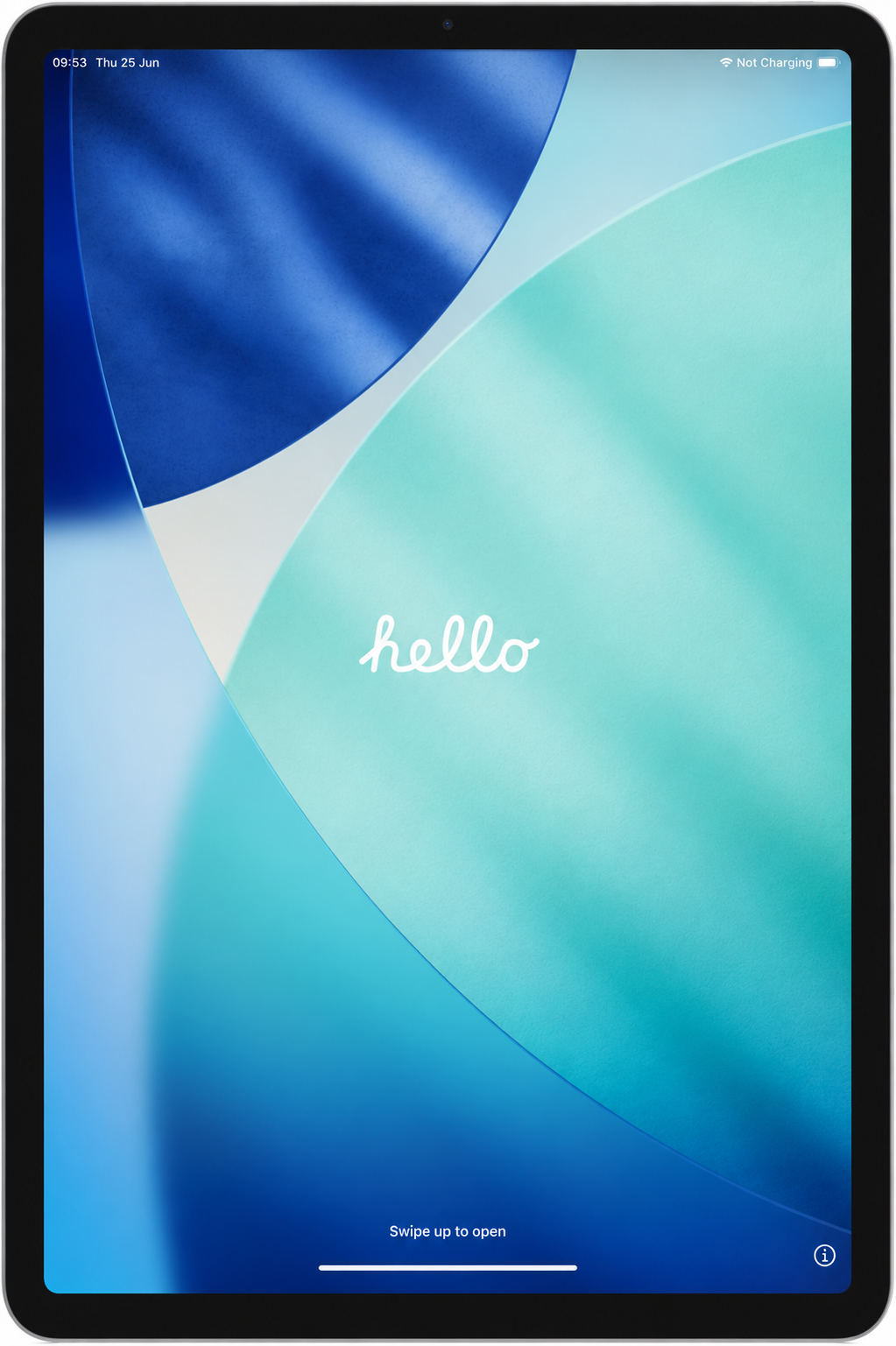
Swipe up from the Hello screen to begin.
SALFORD CITY COUNCIL IT SERVICES
Follow this guide to set up your SCC managed iPad.
Make sure the iPad has enough battery and keep it connected to Wi-Fi during setup.
If you have requested an iPad with Wi-Fi and Cellular, mobile data may become active after the device is enrolled. Some newer iPads no longer use a physical SIM card.
Swipe up from the Hello screen to begin.
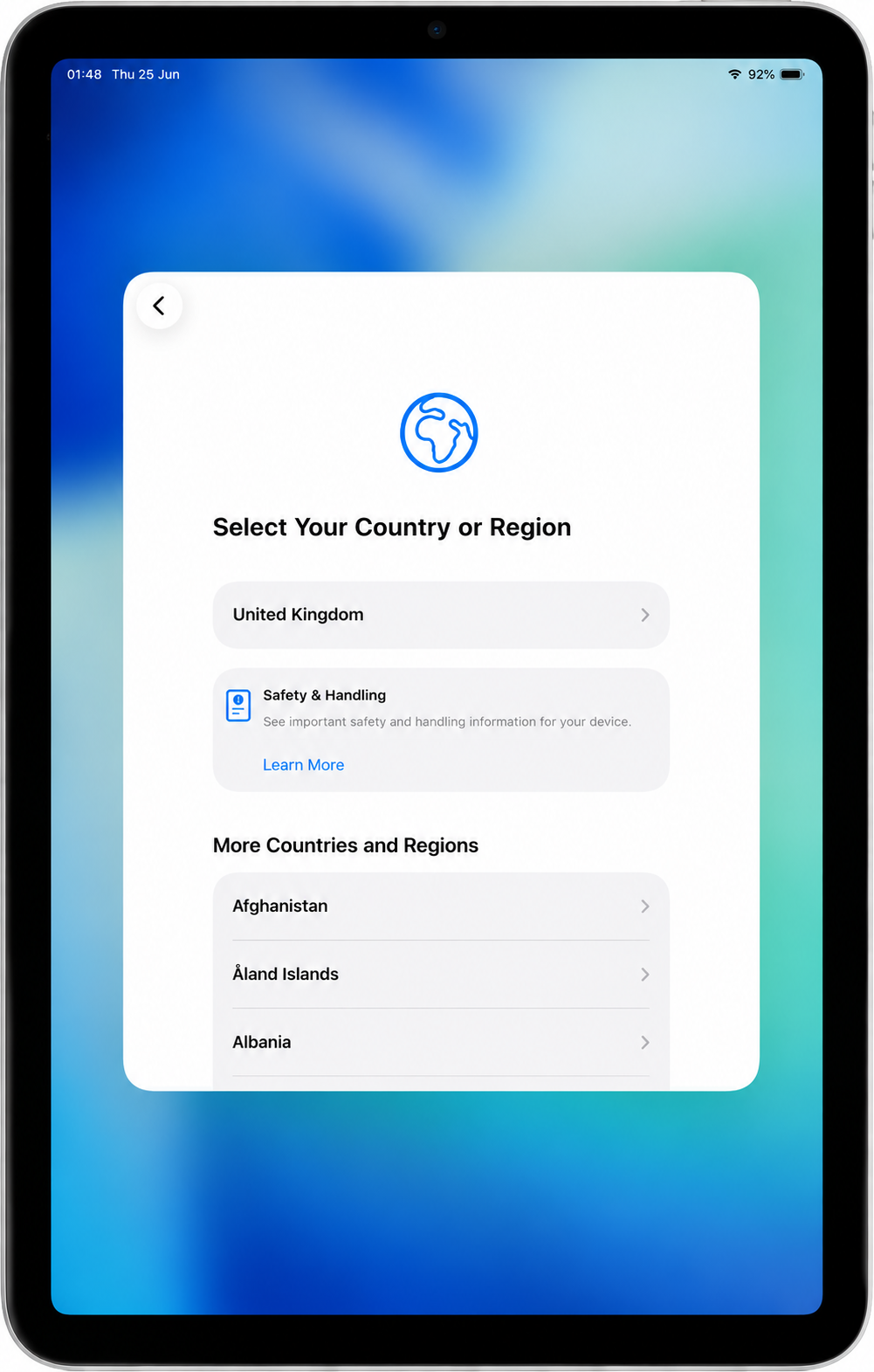
Select United Kingdom.
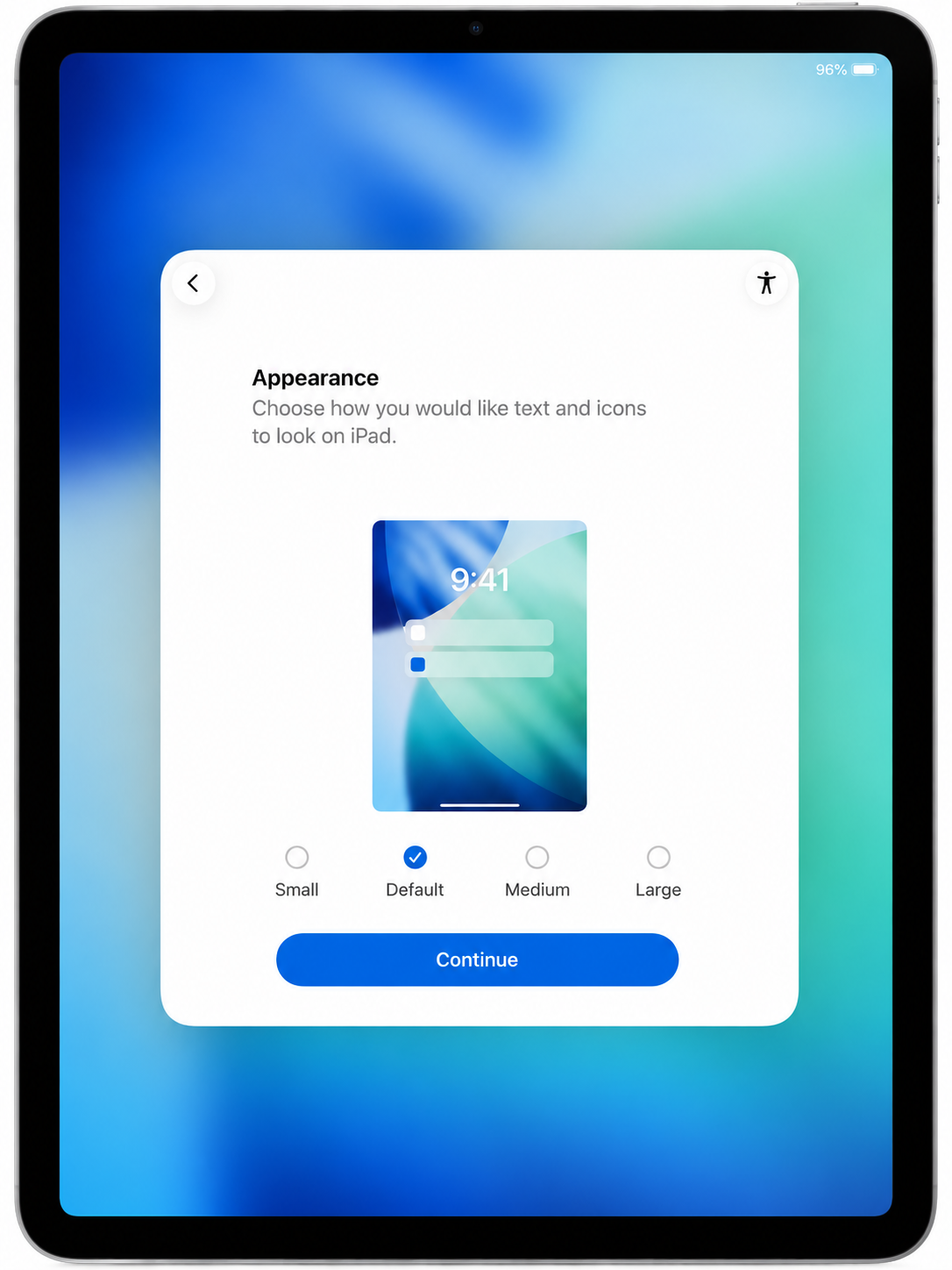
Leave the appearance setting as Default, then select Continue.
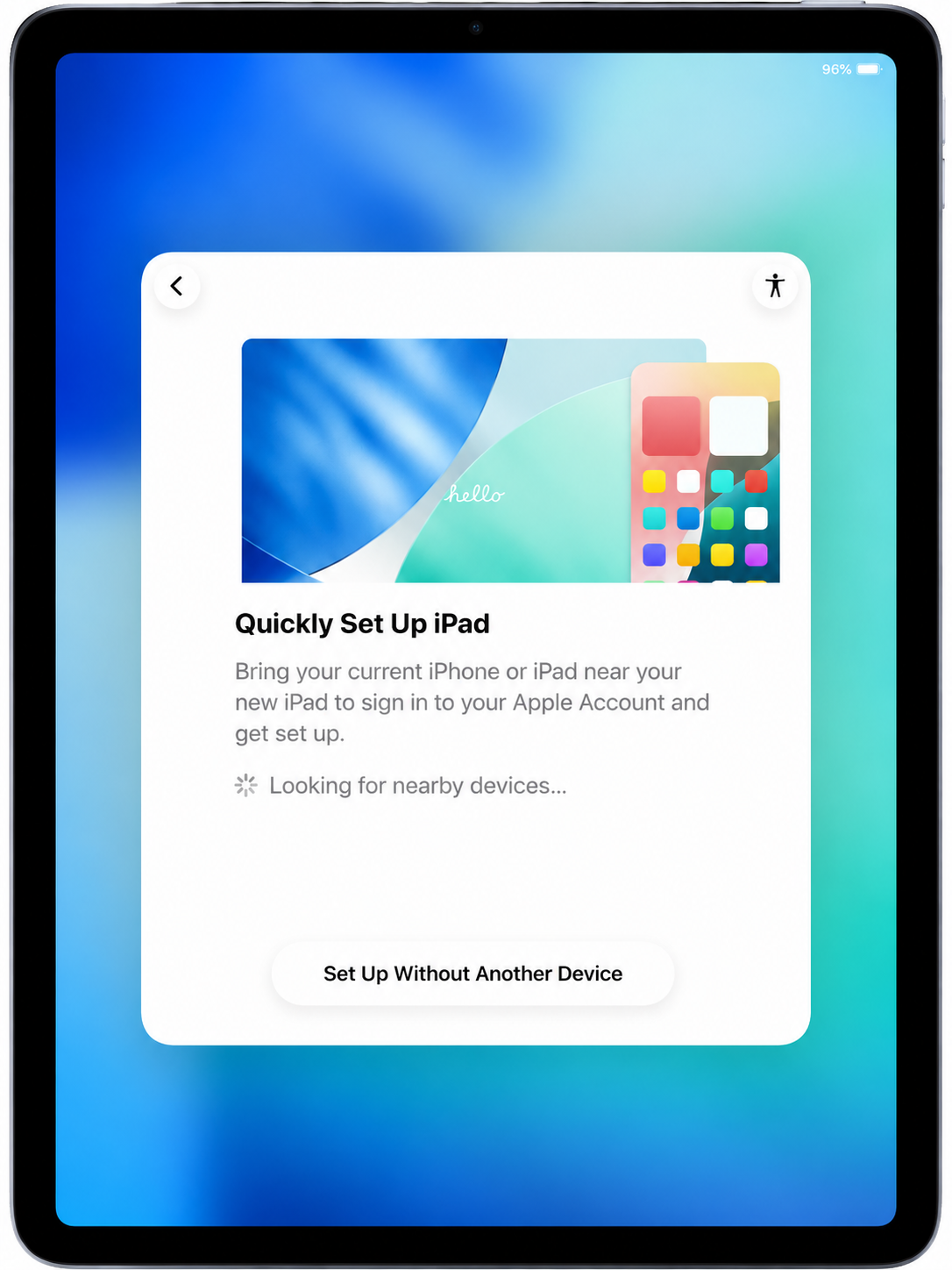
Select Set Up Without Another Device.
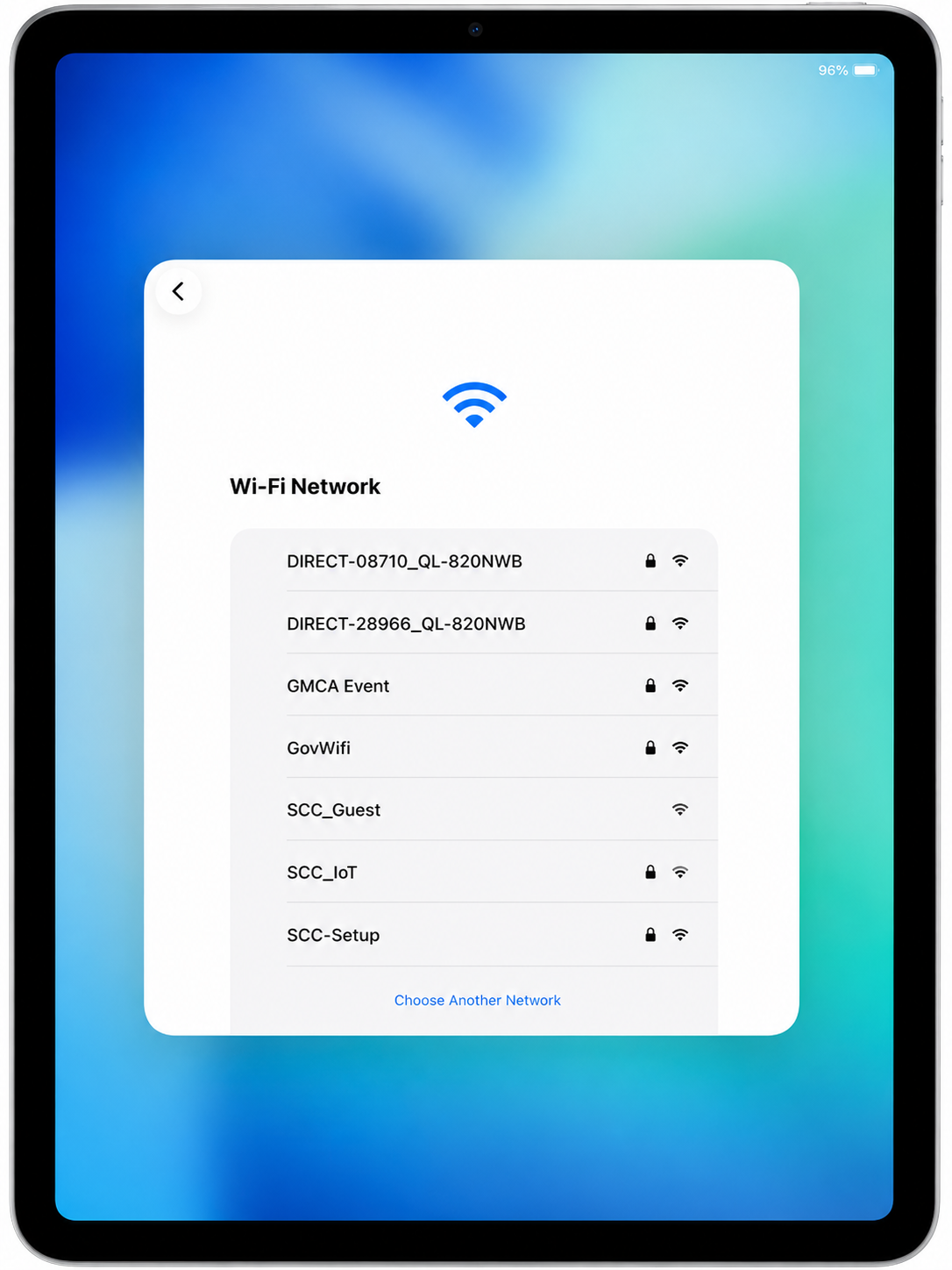
Select SCC-Setup Wi-Fi.
If setting up away from an SCC office, connect to your home Wi-Fi.
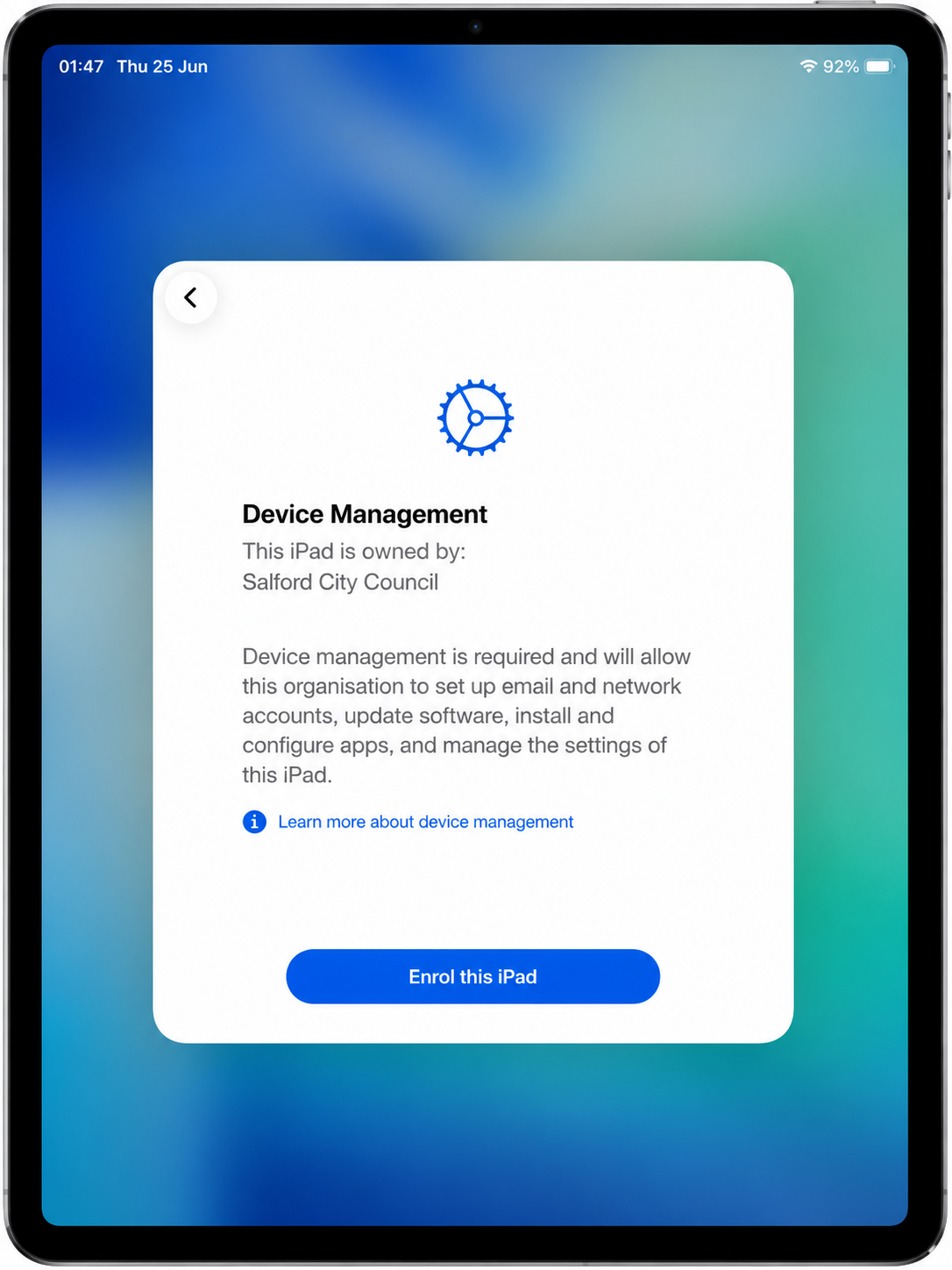
The iPad should show that it is owned by Salford City Council.
Select Enrol this iPad.
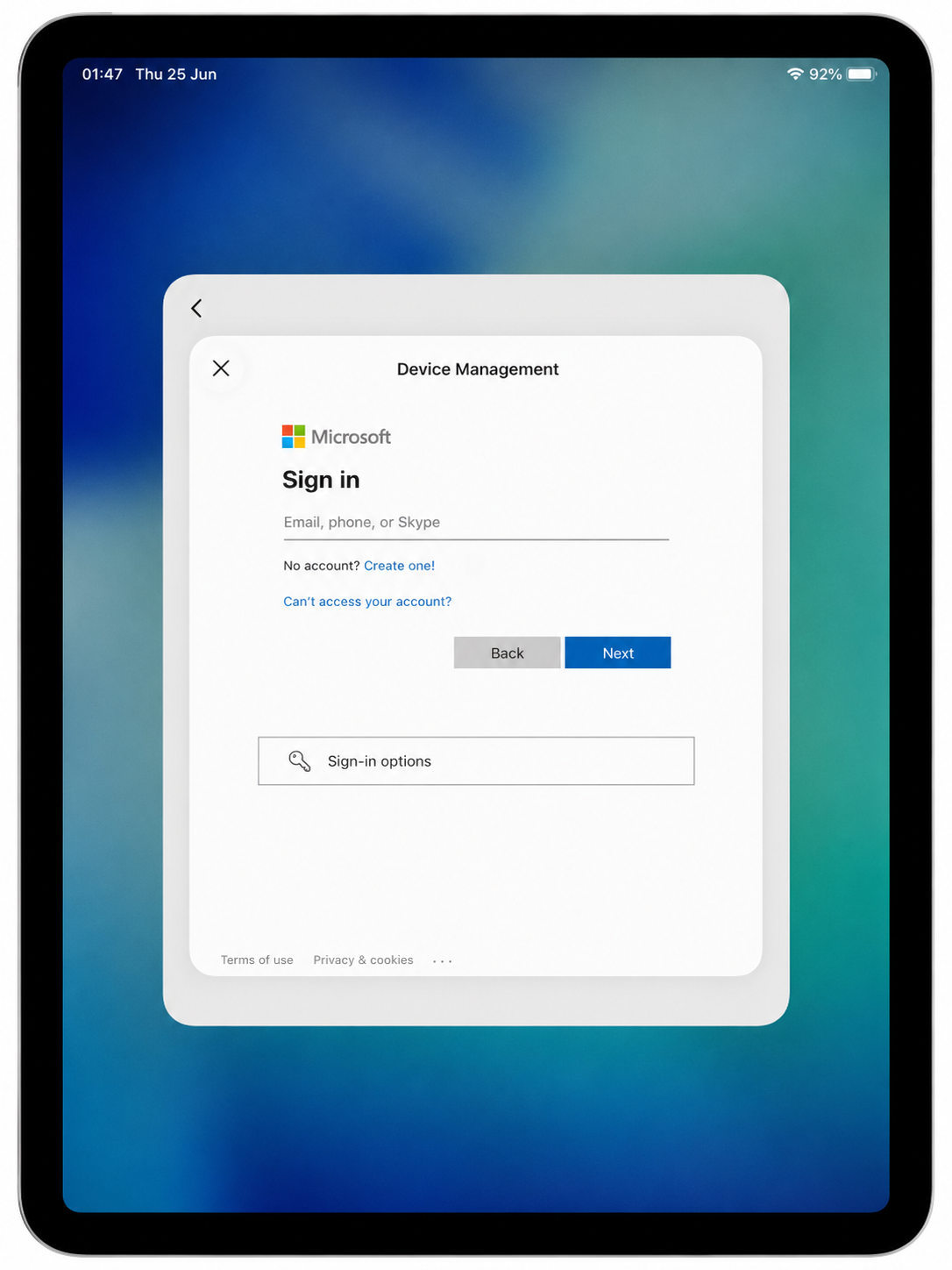
Sign in using your Salford City Council email address.
Follow any authentication prompts if they appear.
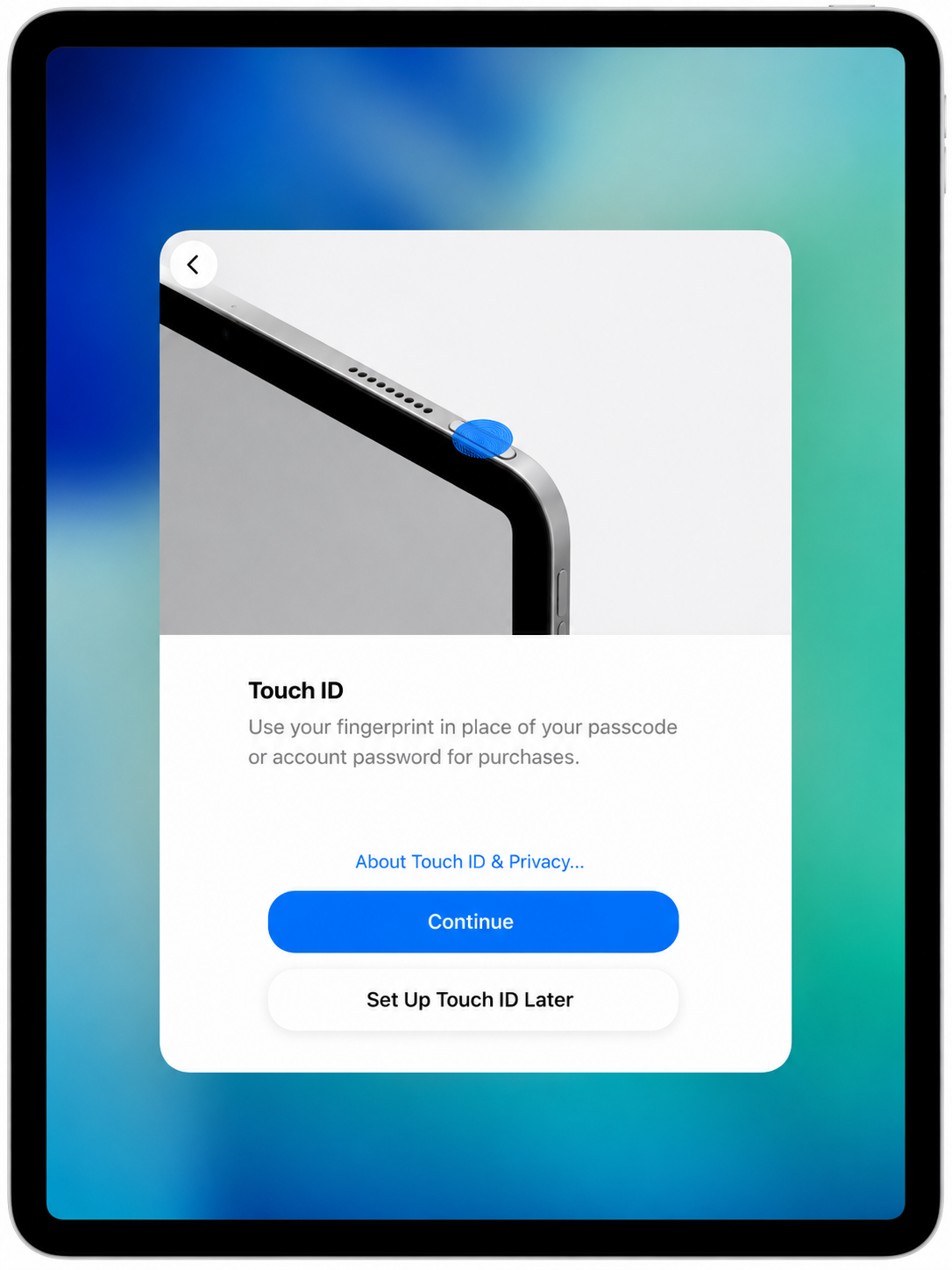
You can set up Touch ID now or select Set Up Touch ID Later.
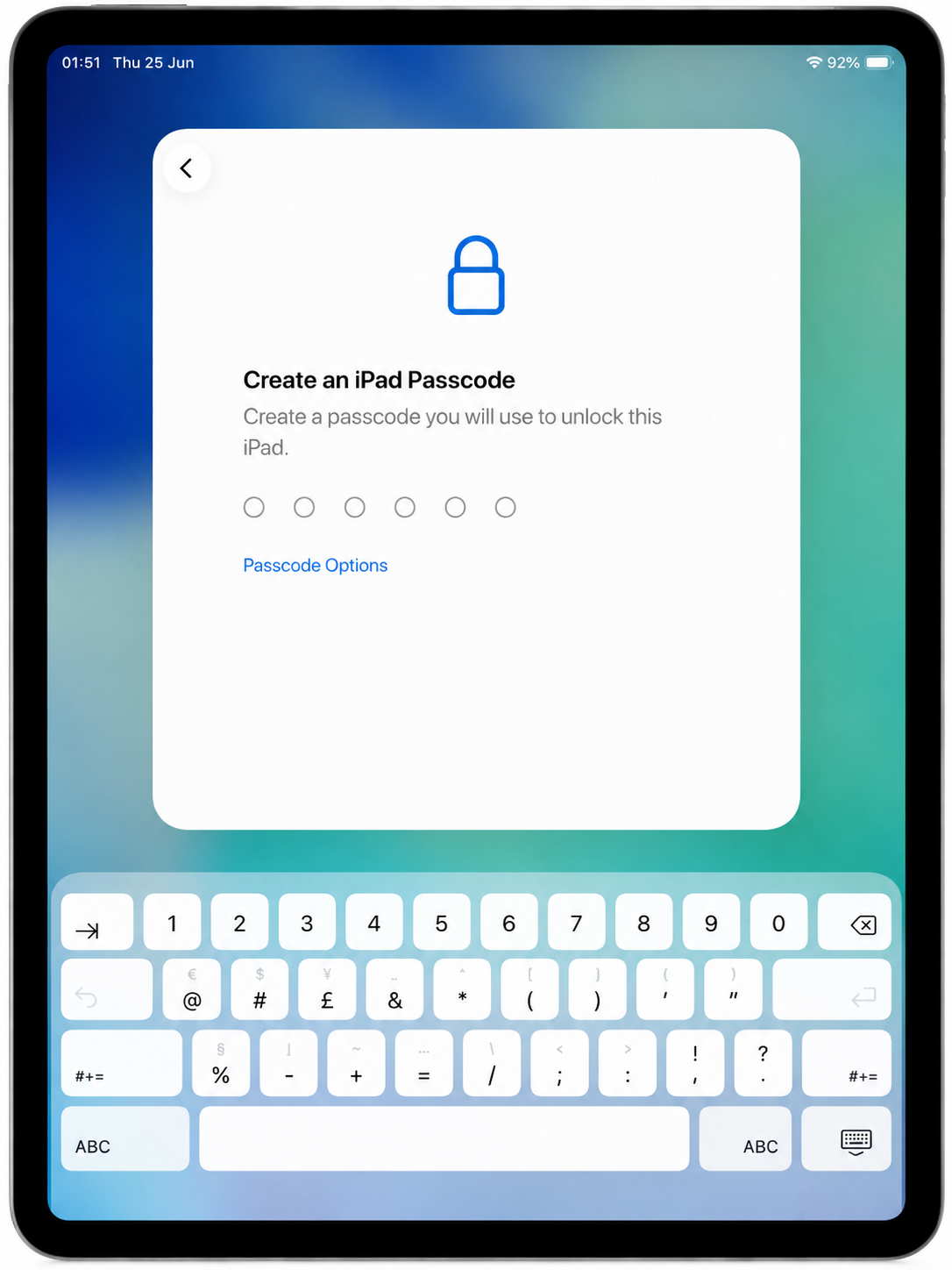
Create a passcode to unlock the iPad.
Do not share your passcode with anyone.
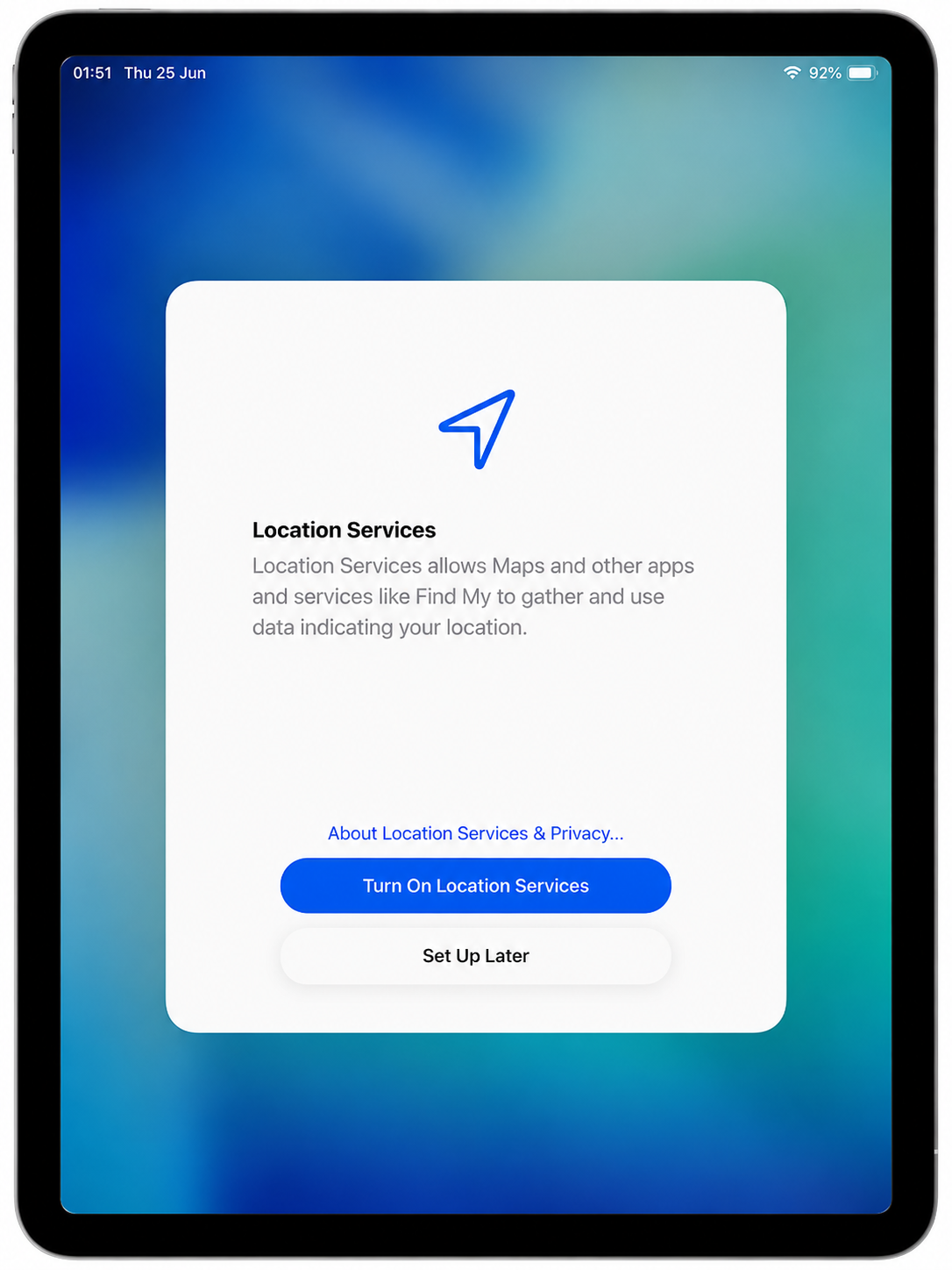
Select Turn On Location Services.
This helps with location-based services and may assist IT if a device is lost.
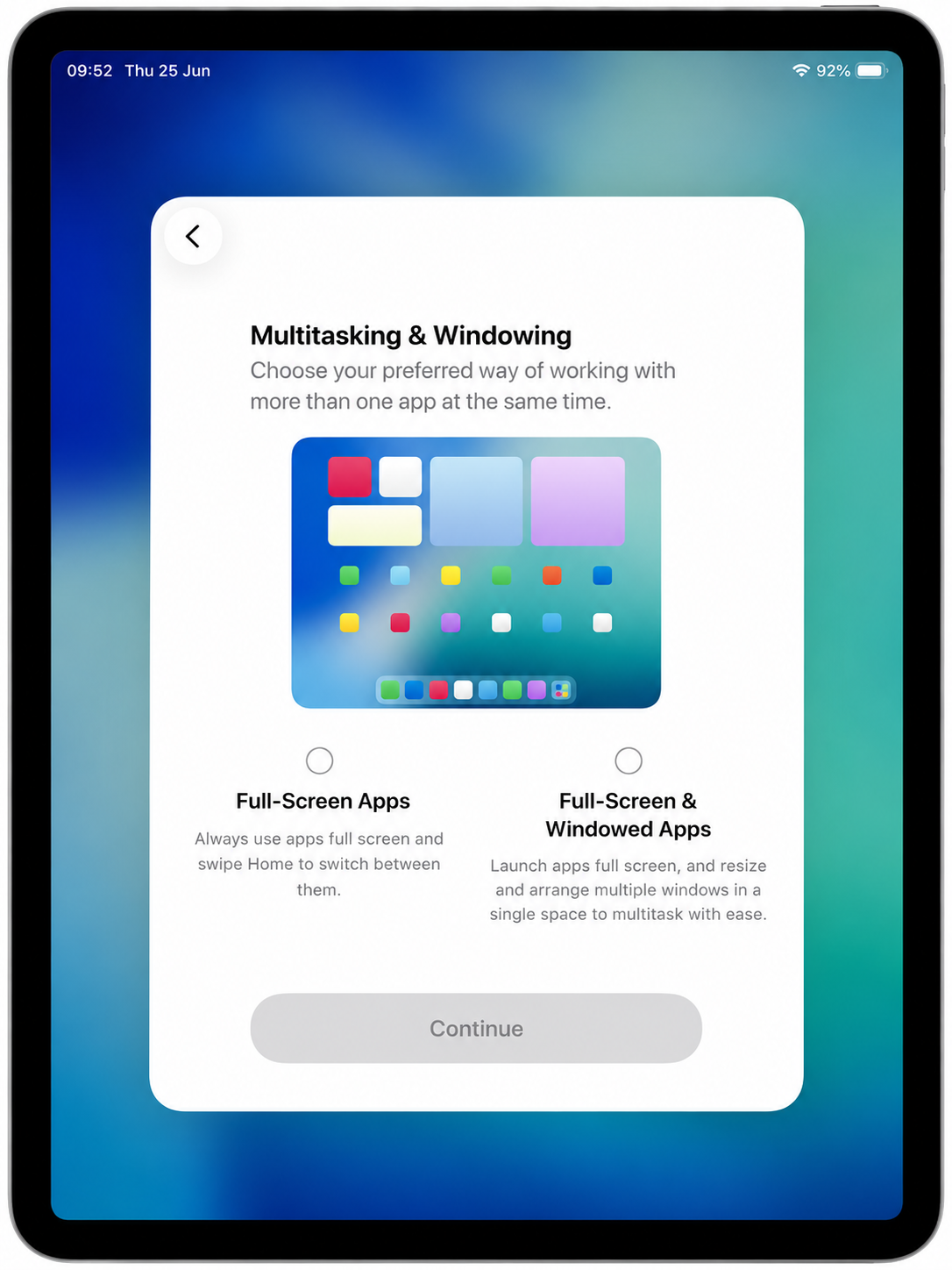
Select your preferred option, then select Continue.
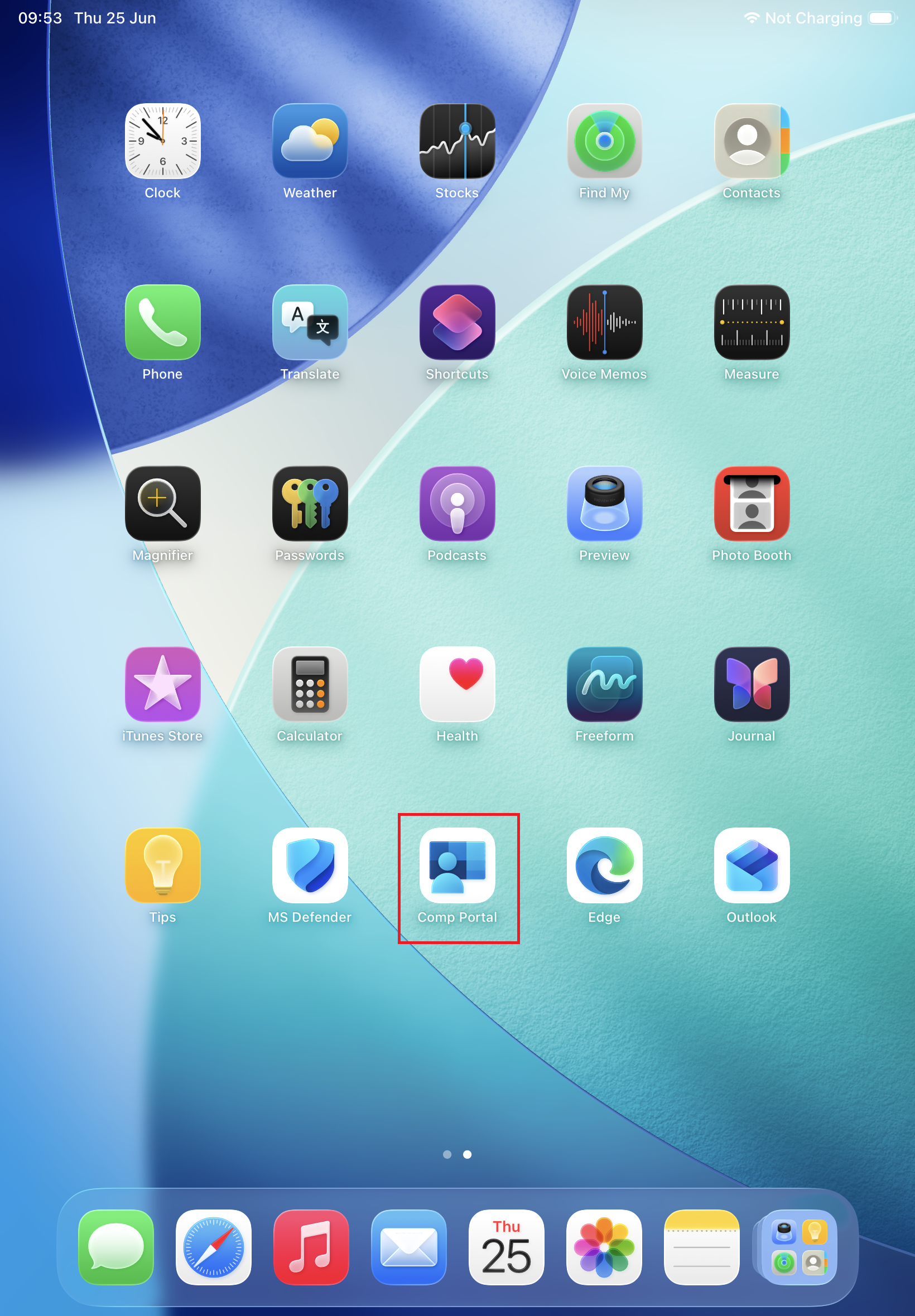
Once the iPad reaches the Home Screen, setup has completed successfully.
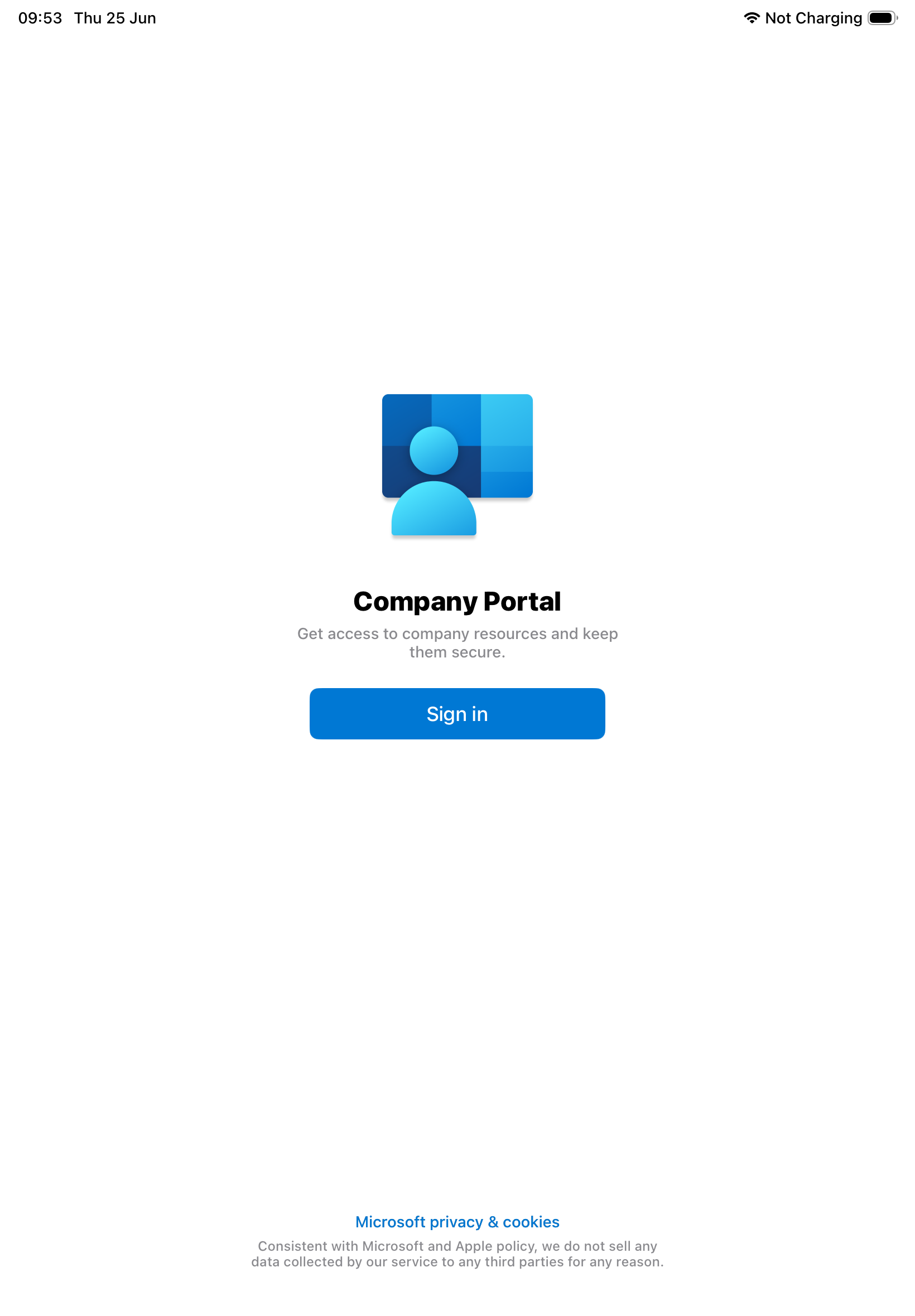
Open Company Portal.
Select Sign in.
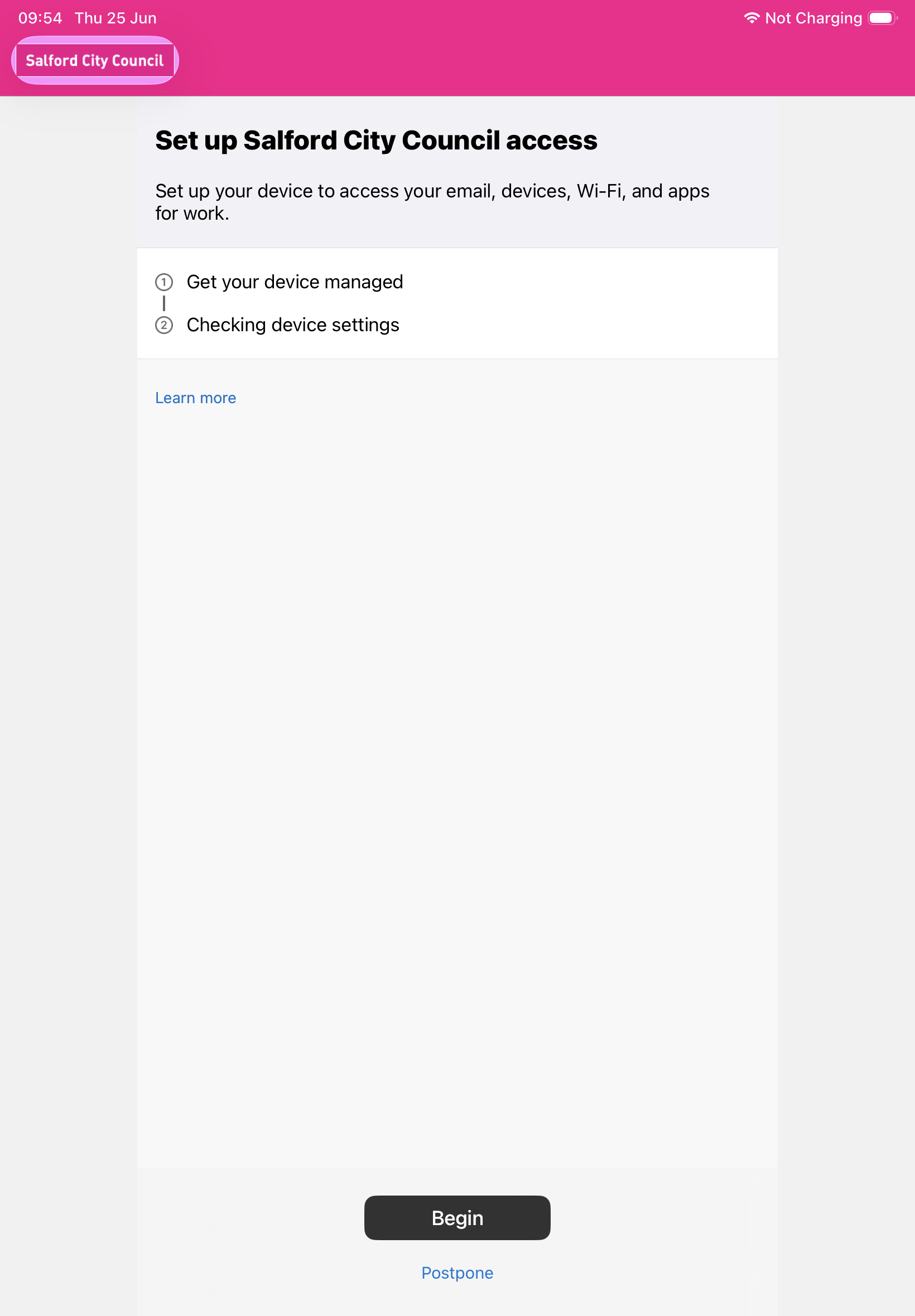
Select Begin.
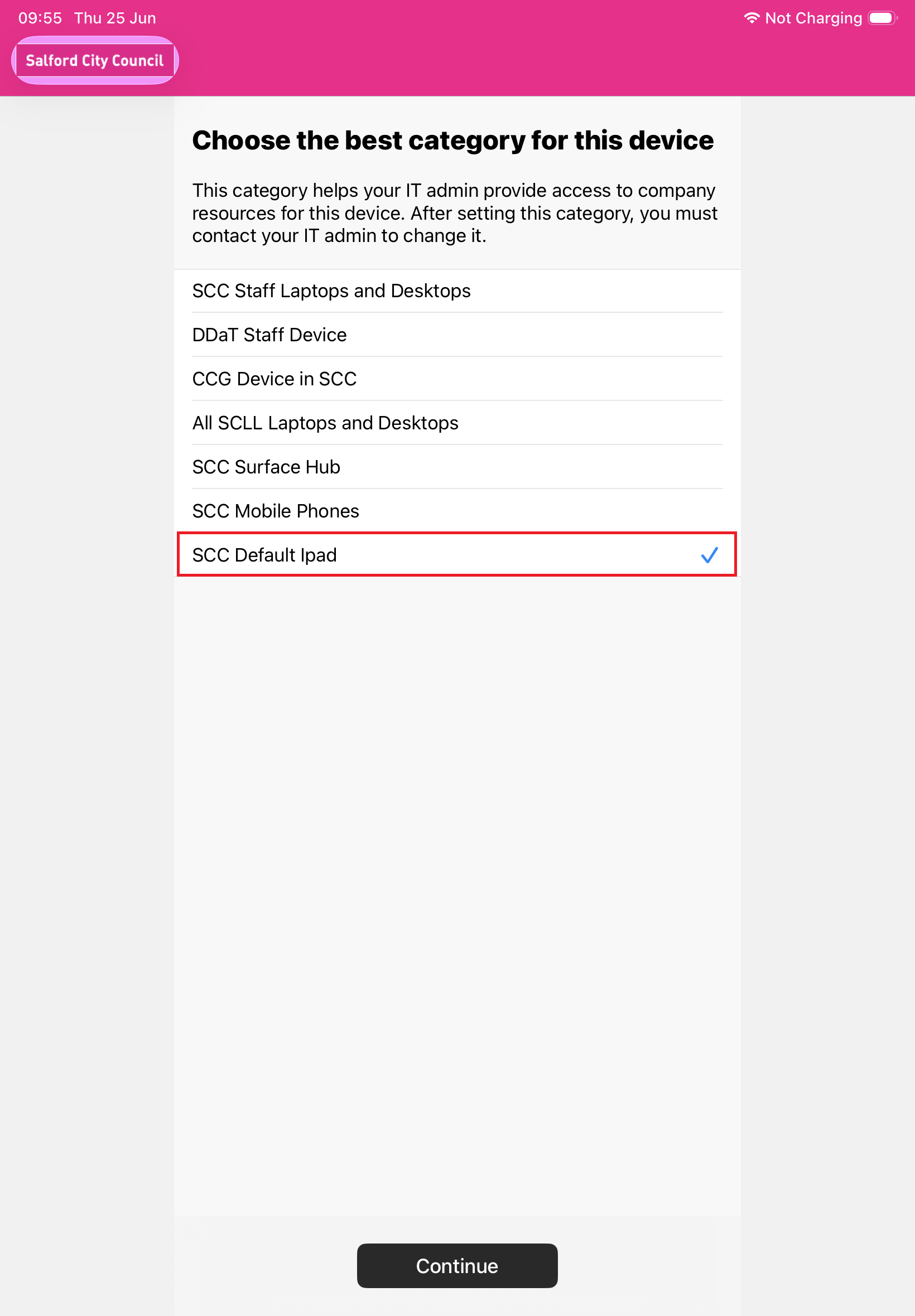
Select SCC Default iPad, then select Continue.
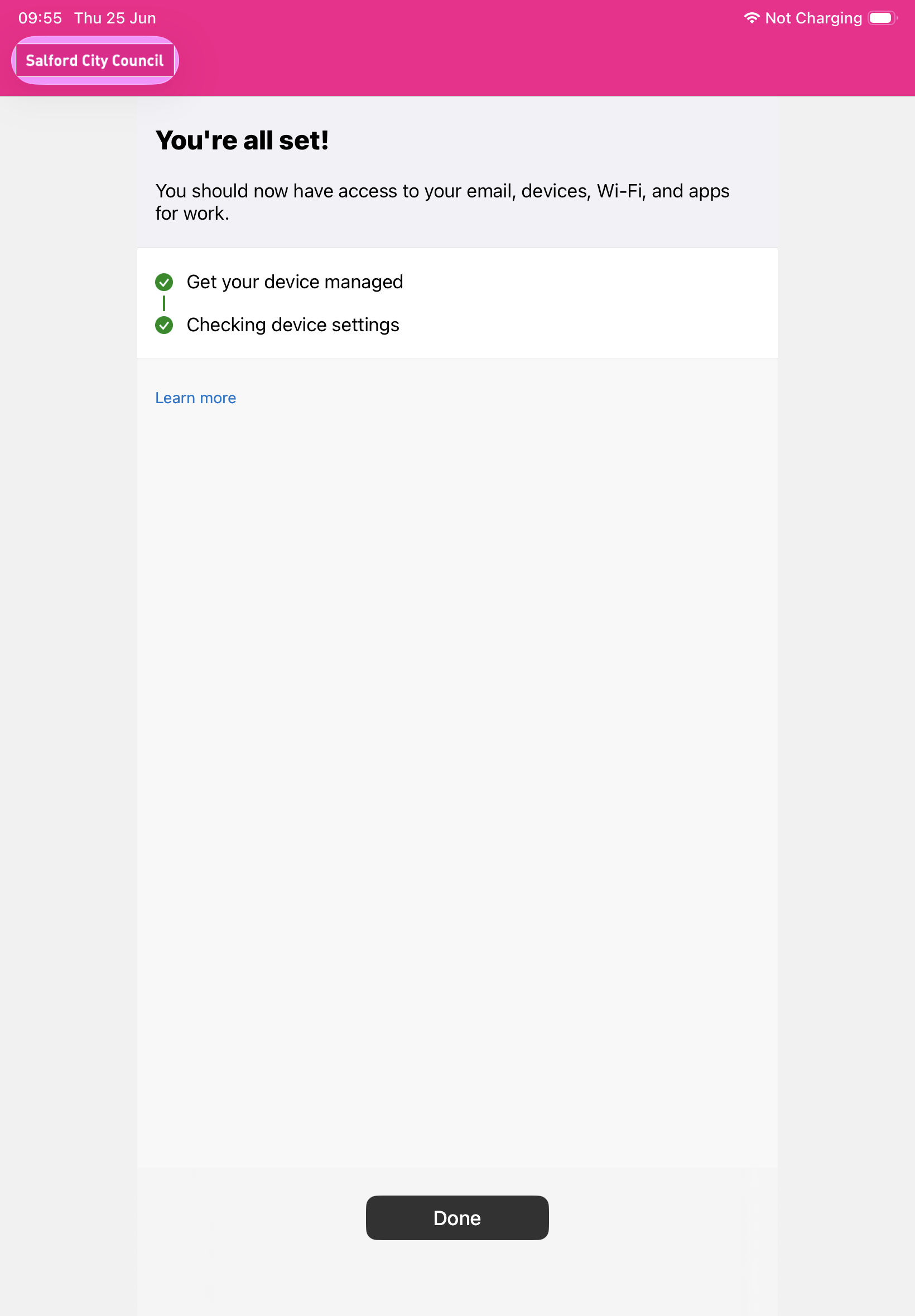
When you see You're all set!, select Done.
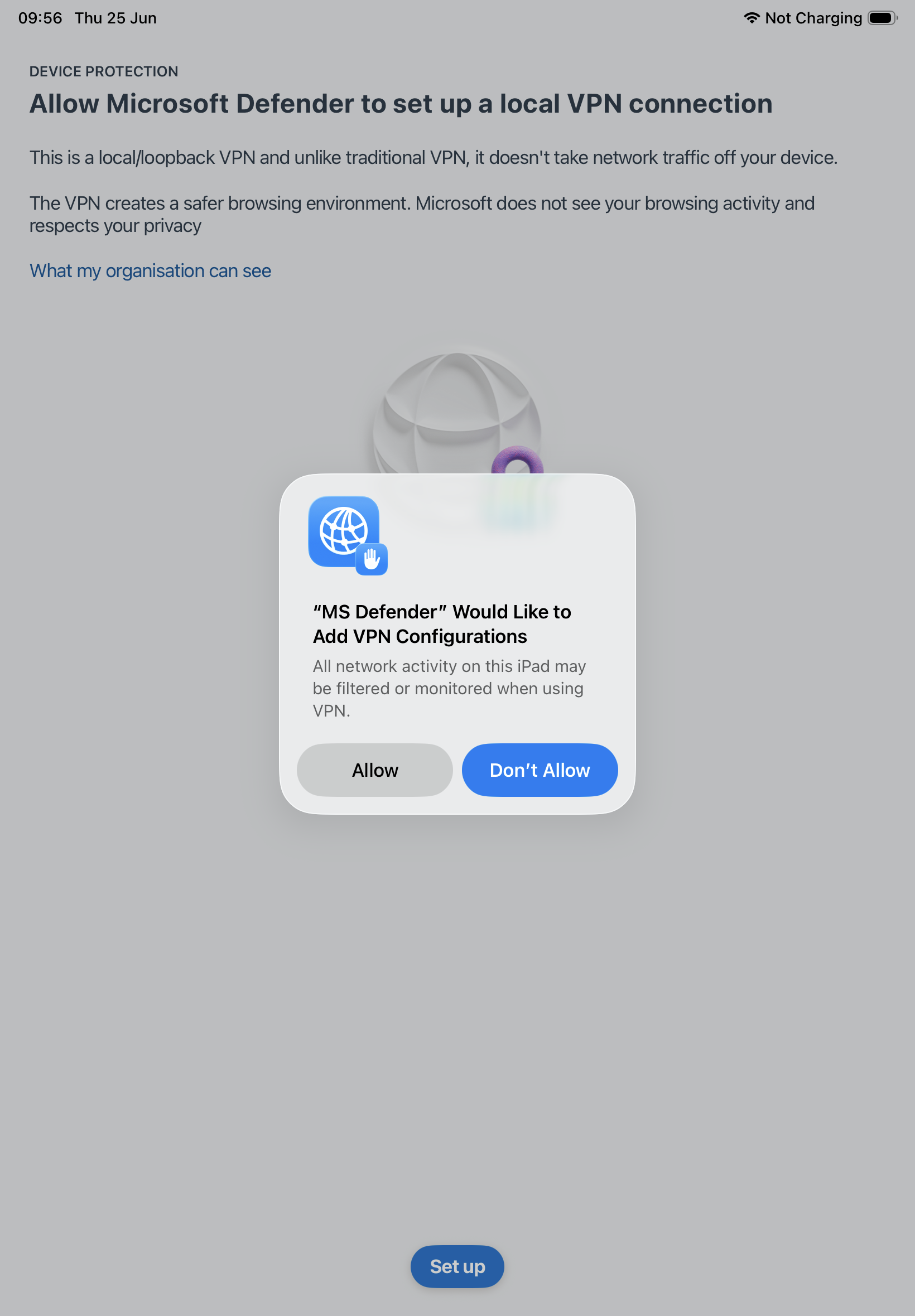
Return to the Home Screen and open the MS Defender app. If prompted, select your Salford City Council account to continue.
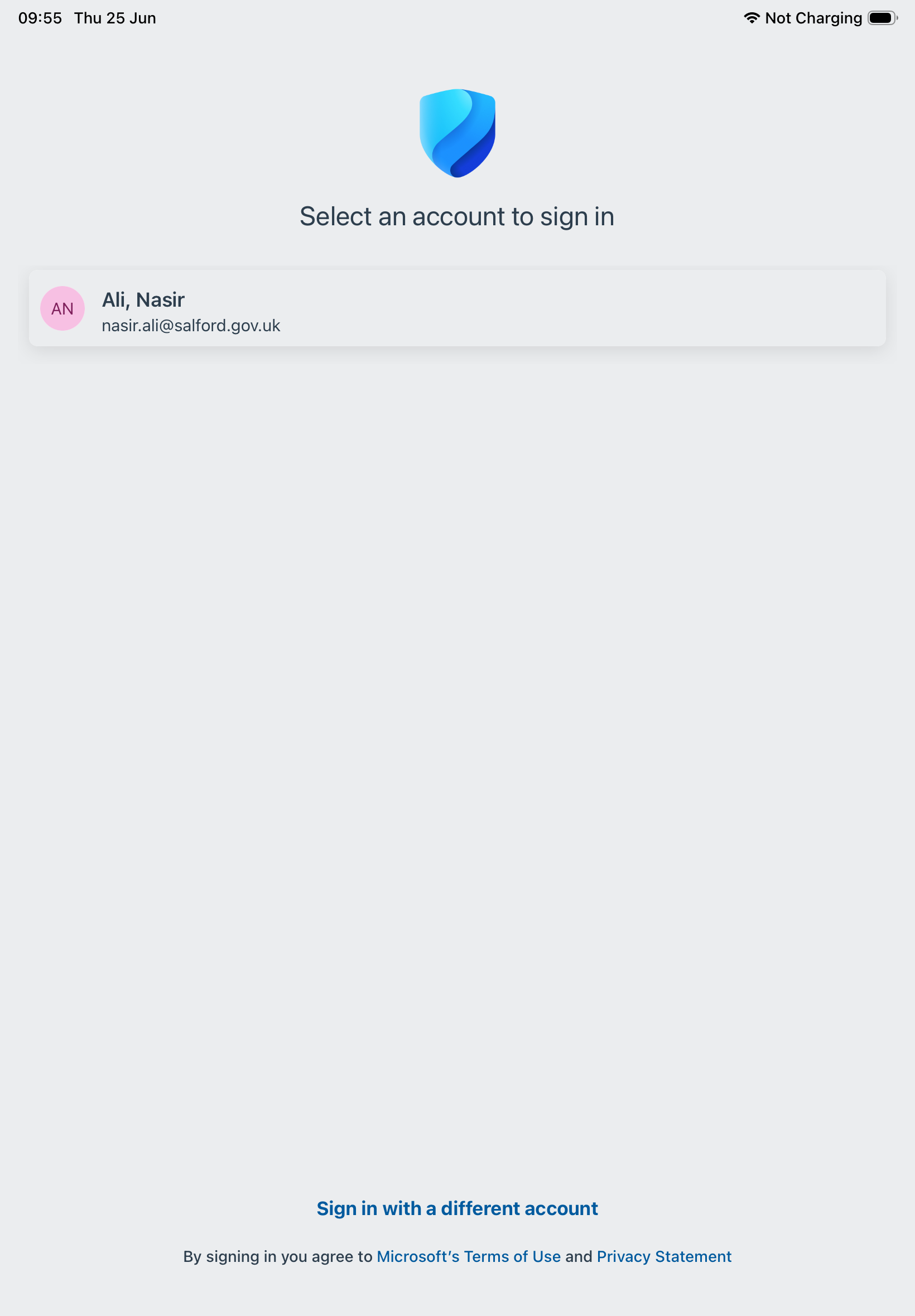
Read and accept the Microsoft Defender Terms of Use, then select Accept.
When prompted:
Your SCC iPad is now fully configured and ready to use.
If your iPad has been ordered with Wi-Fi + Cellular, it uses an eSIM rather than a physical SIM card.
After your device has been enrolled, you may be prompted to activate or add the mobile data plan automatically.
If no prompt appears, open Settings → Mobile Data and check whether an eSIM or mobile data plan is available.
If you are unsure whether your iPad includes mobile data, please contact IT Support.
Your SCC iPad is now set up and ready to use.
If you experience issues setting up or using an SCC managed device, please log an IT Support ticket or call 0161 793 3993.
Return to the SCC Device Portal to access other setup and support guides.