01
Language
Select your preferred language, for example English (United Kingdom).
Salford City Council IT Services
Follow these steps to set up your SCC staff laptop.
Plug the charger into the laptop before setup. Laptops are not fully charged. If the device powers off during setup, it can cause issues or require setup to be started again.
If anything is missing, contact IT Support before continuing.
If you have previously signed into an SCC laptop before, you may see fewer setup screens during this process. New starters will usually see additional Microsoft Authenticator and verification steps.
Select your preferred language, for example English (United Kingdom).
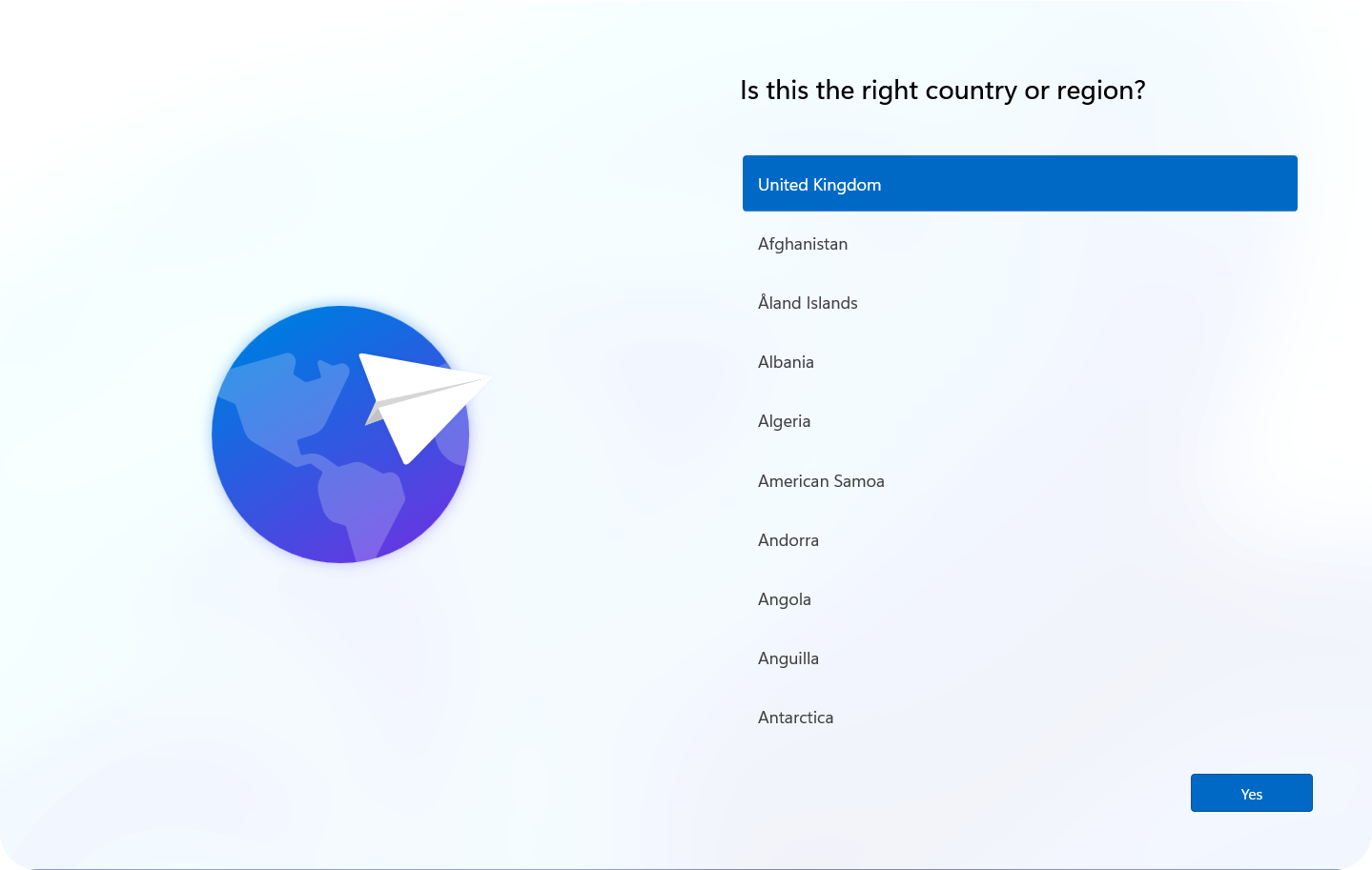
Select your country or region.
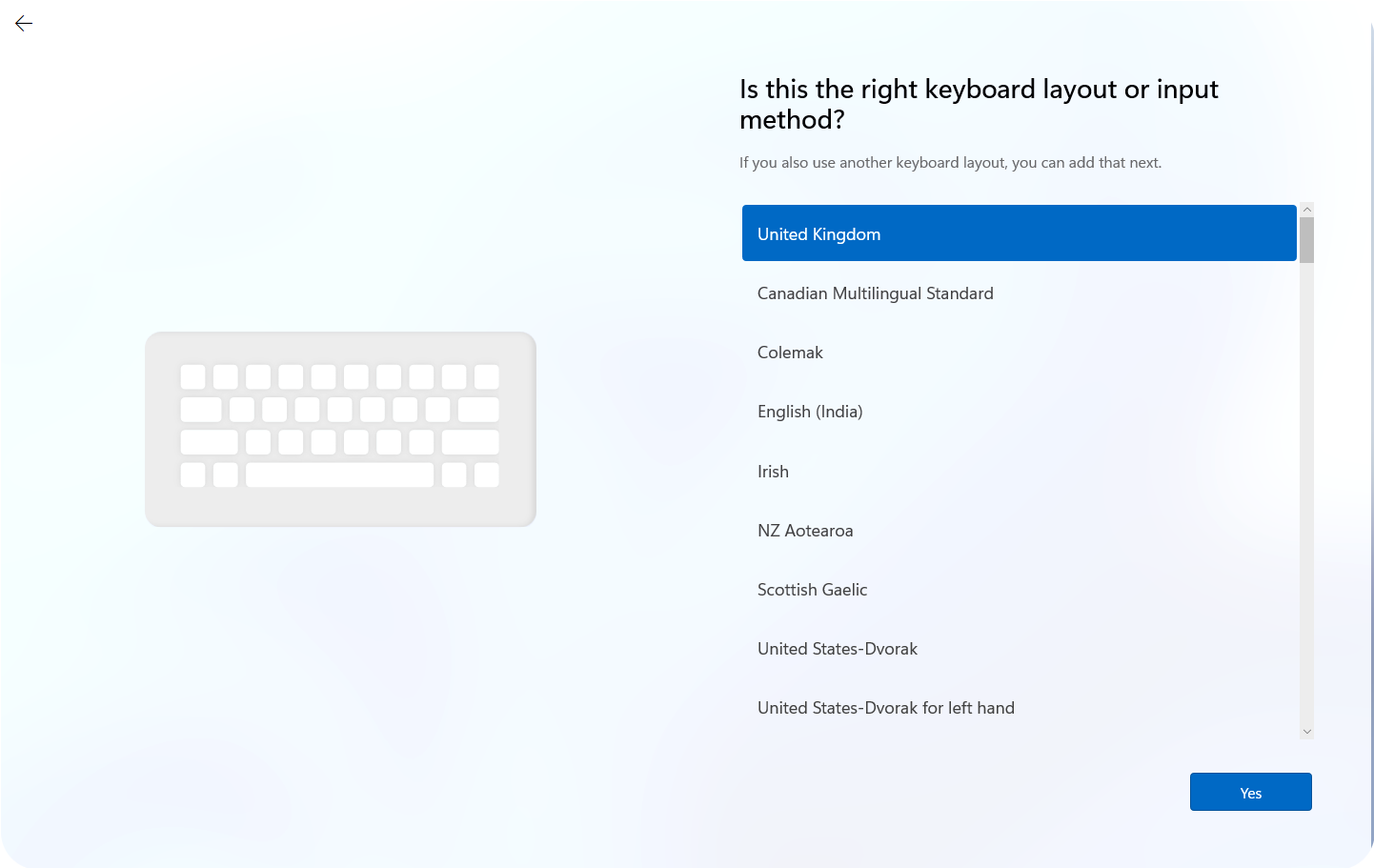
Select your keyboard layout.
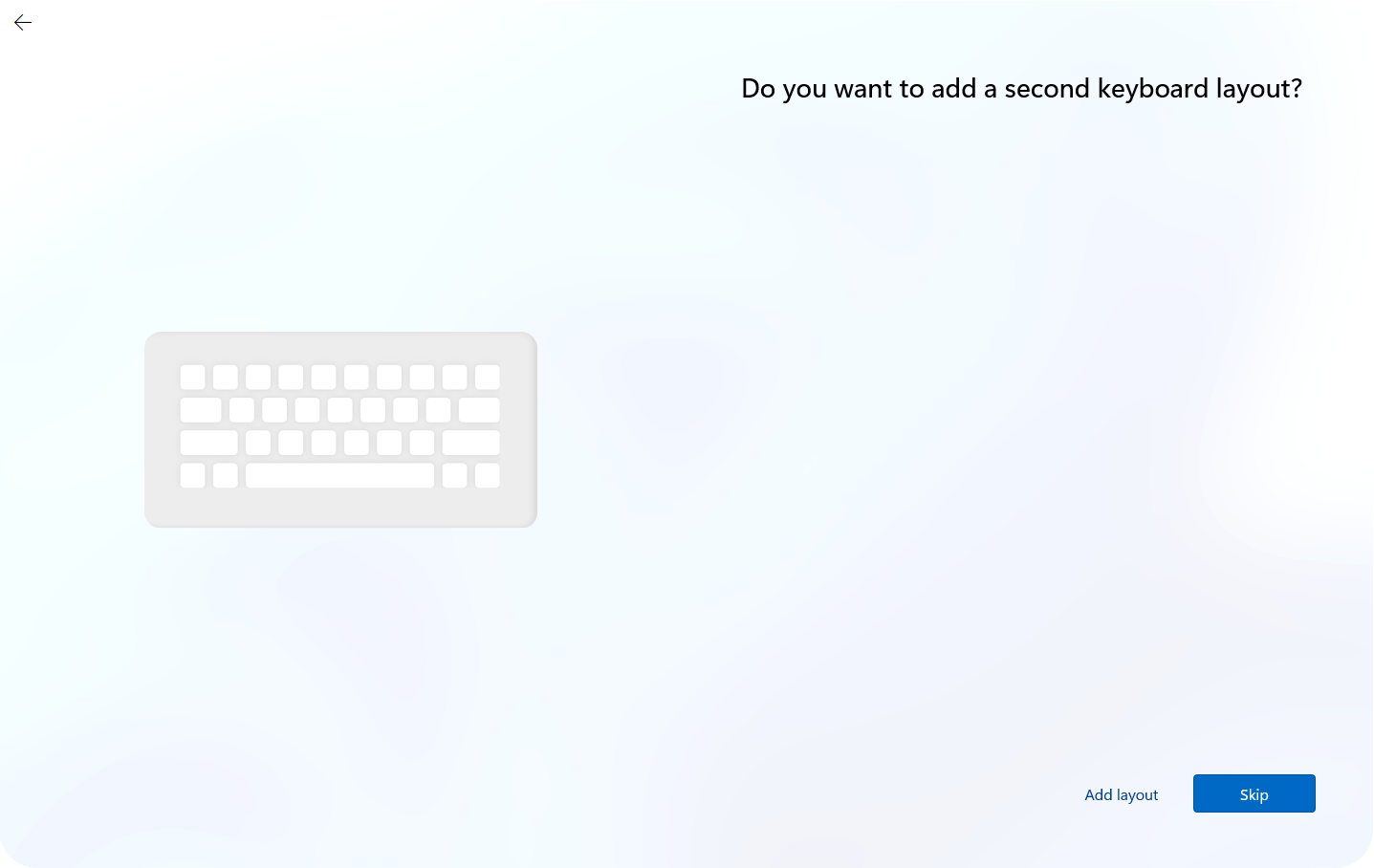
Select Skip if you do not need another keyboard layout.
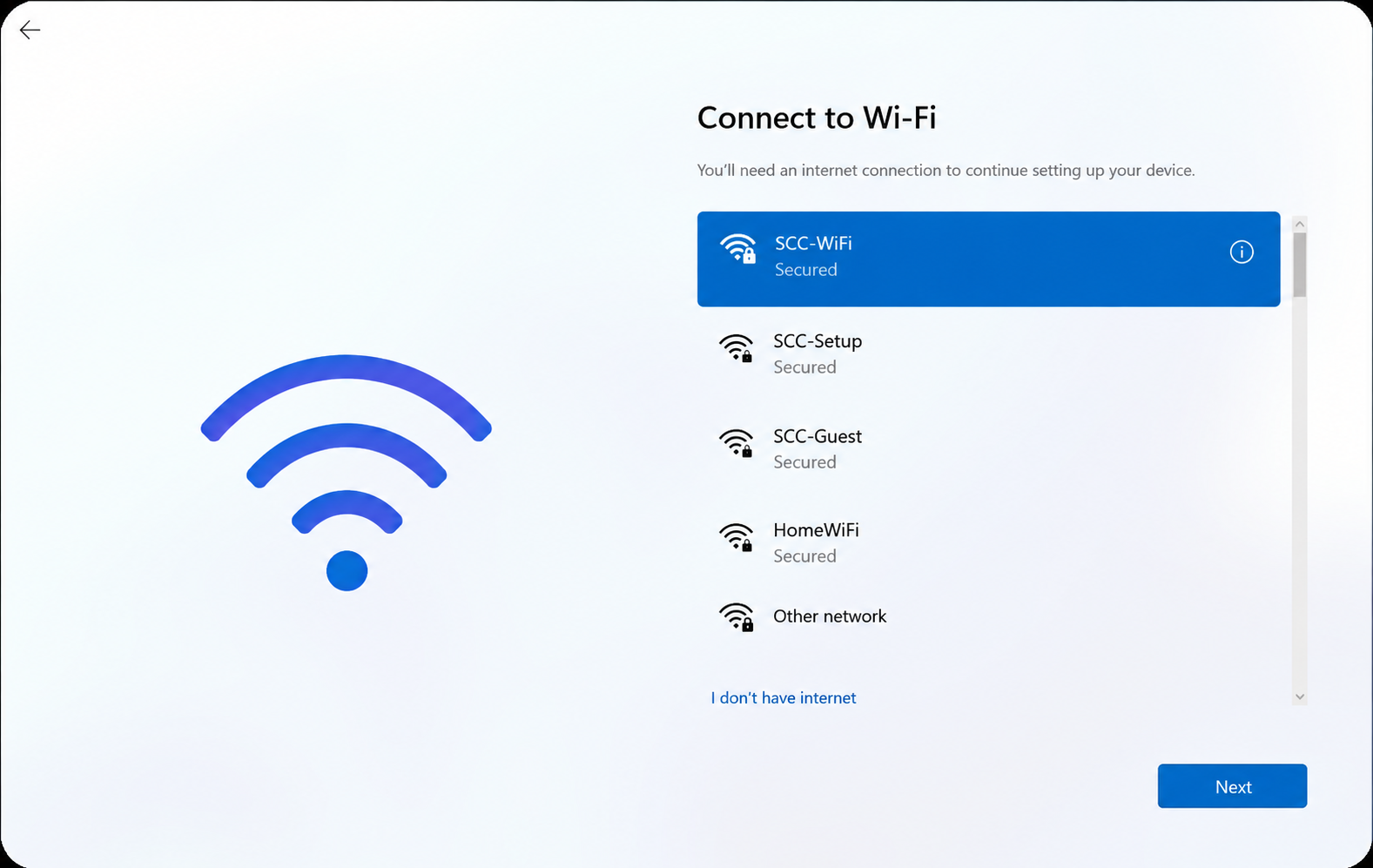
Connect to a Wi-Fi network to continue setup.
Otherwise, connect to your home Wi-Fi or another secure network.
Windows may briefly check for updates and restart automatically. This is normal.
If the laptop restarts, allow it to power back on and continue setup.
Sign in using your SCC email address and password.
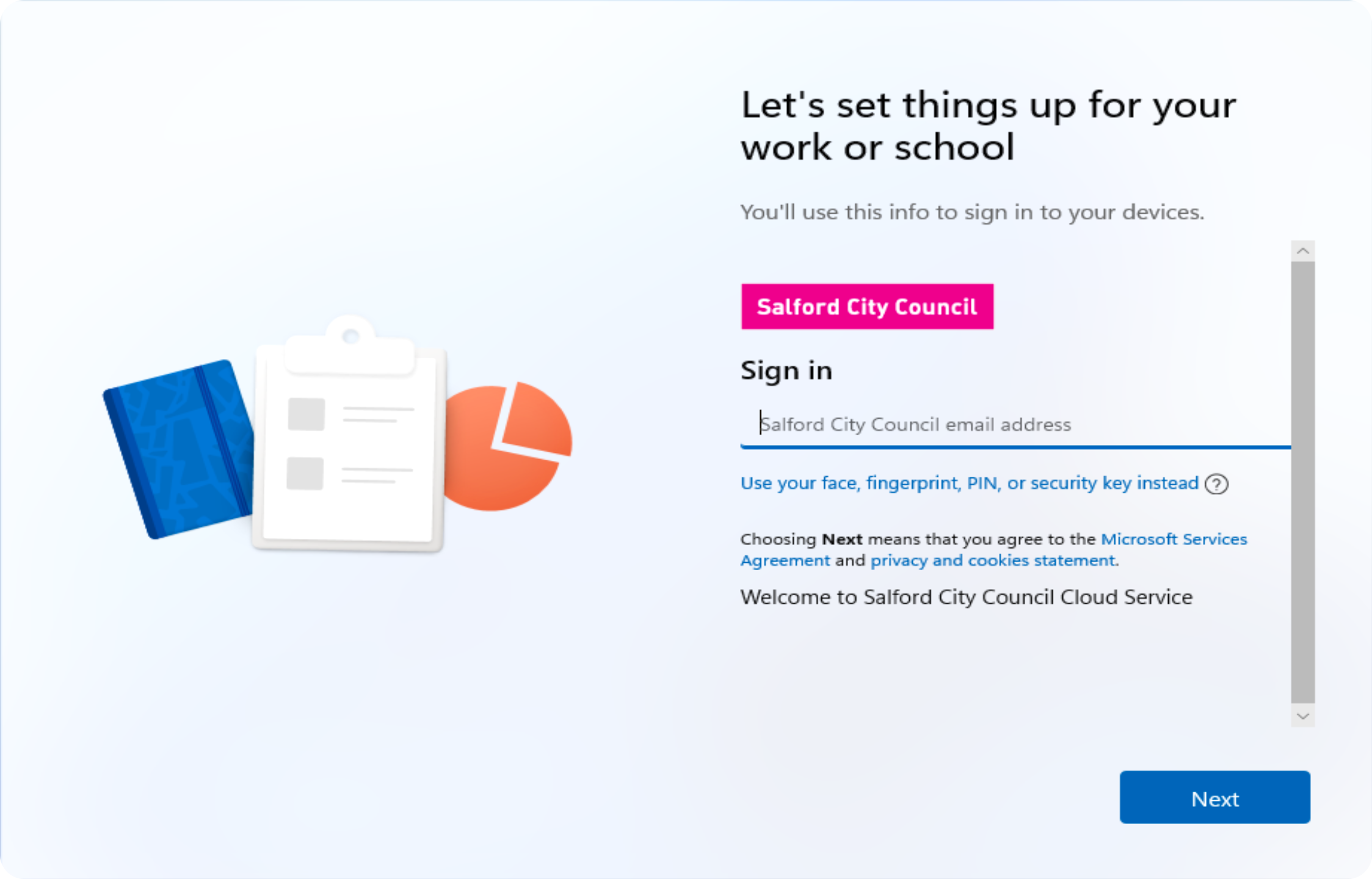
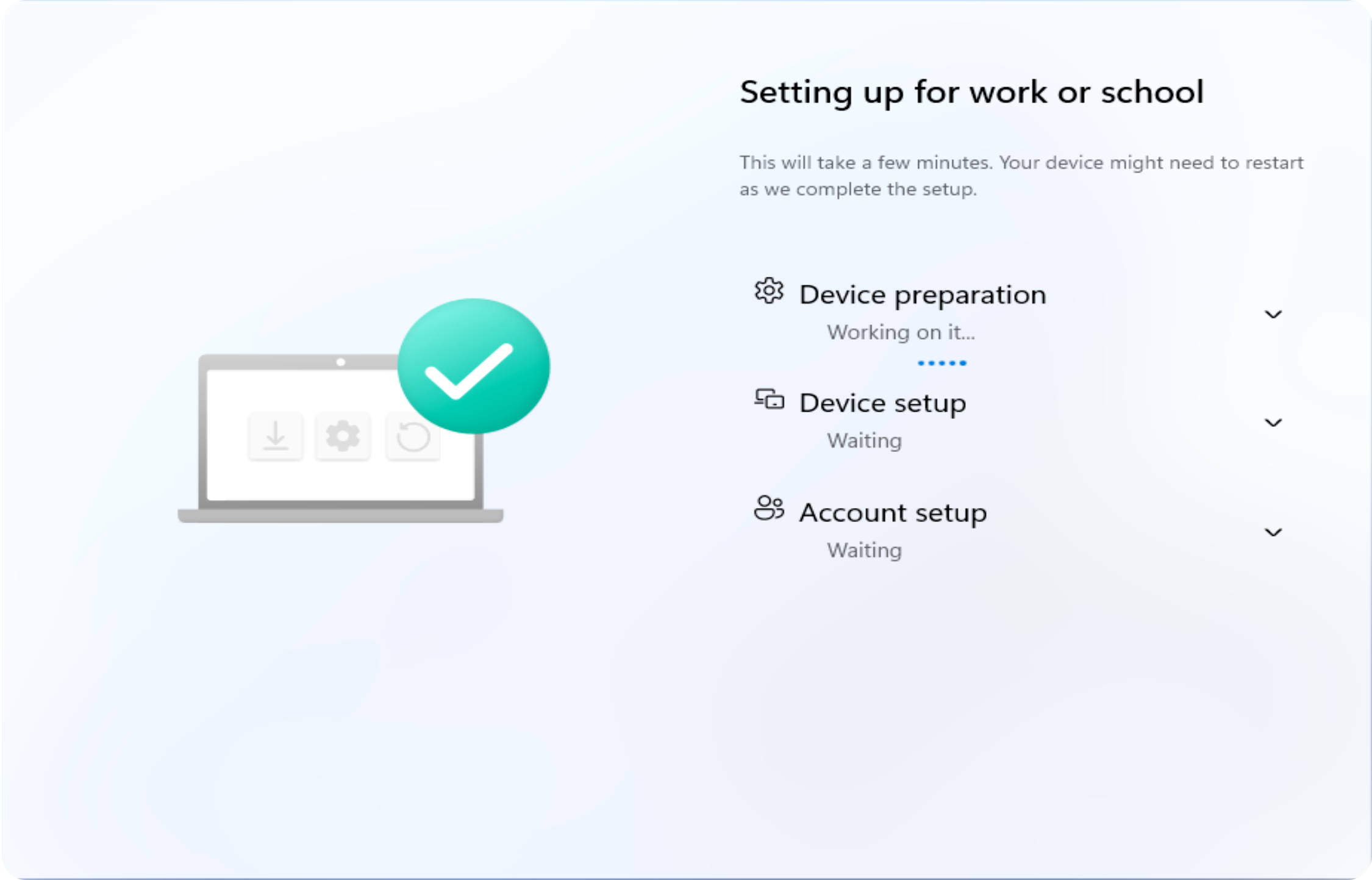
Your device preparation and initial setup will begin automatically. Please wait.
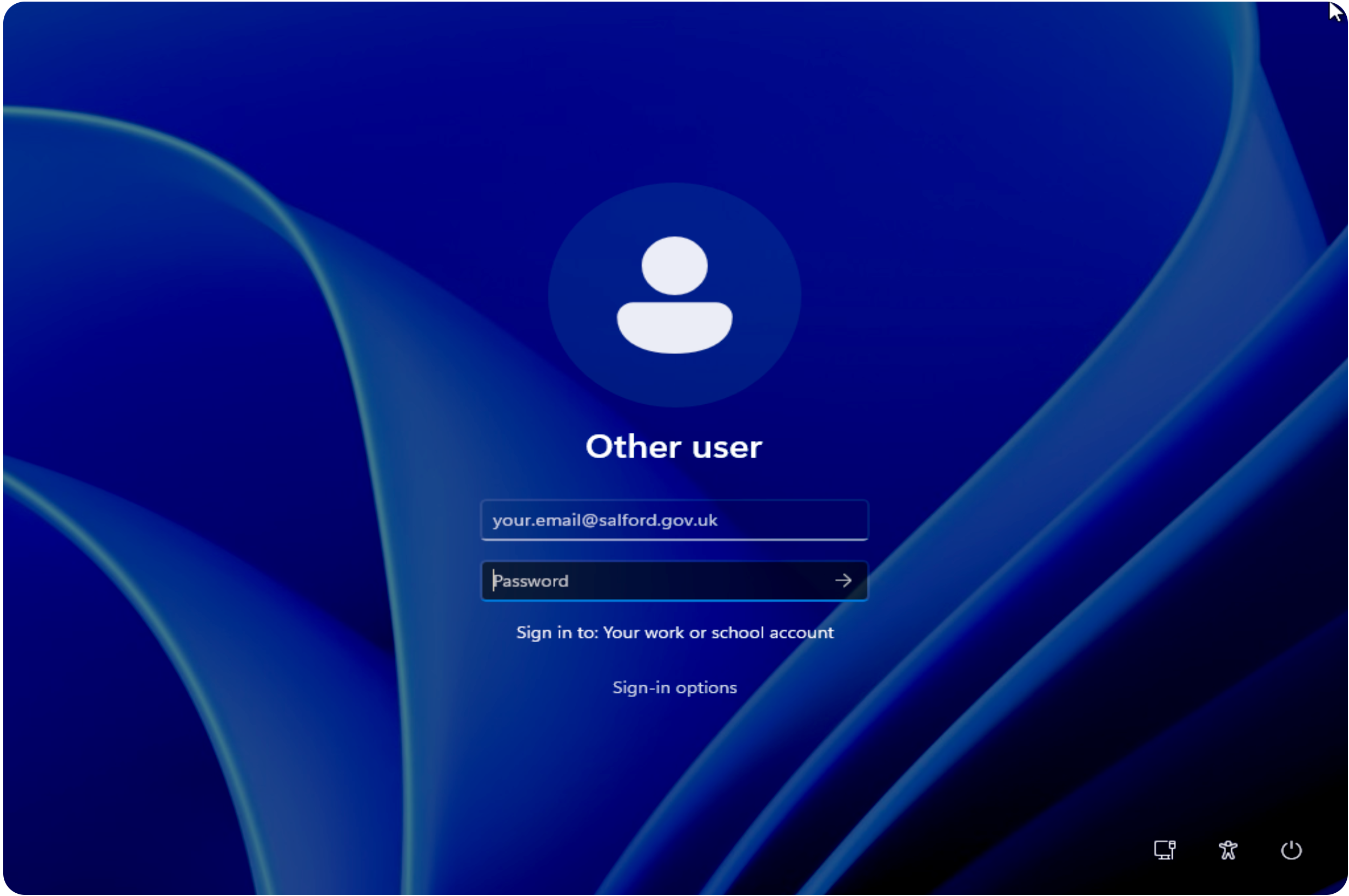
Sign in using your SCC email address and password.
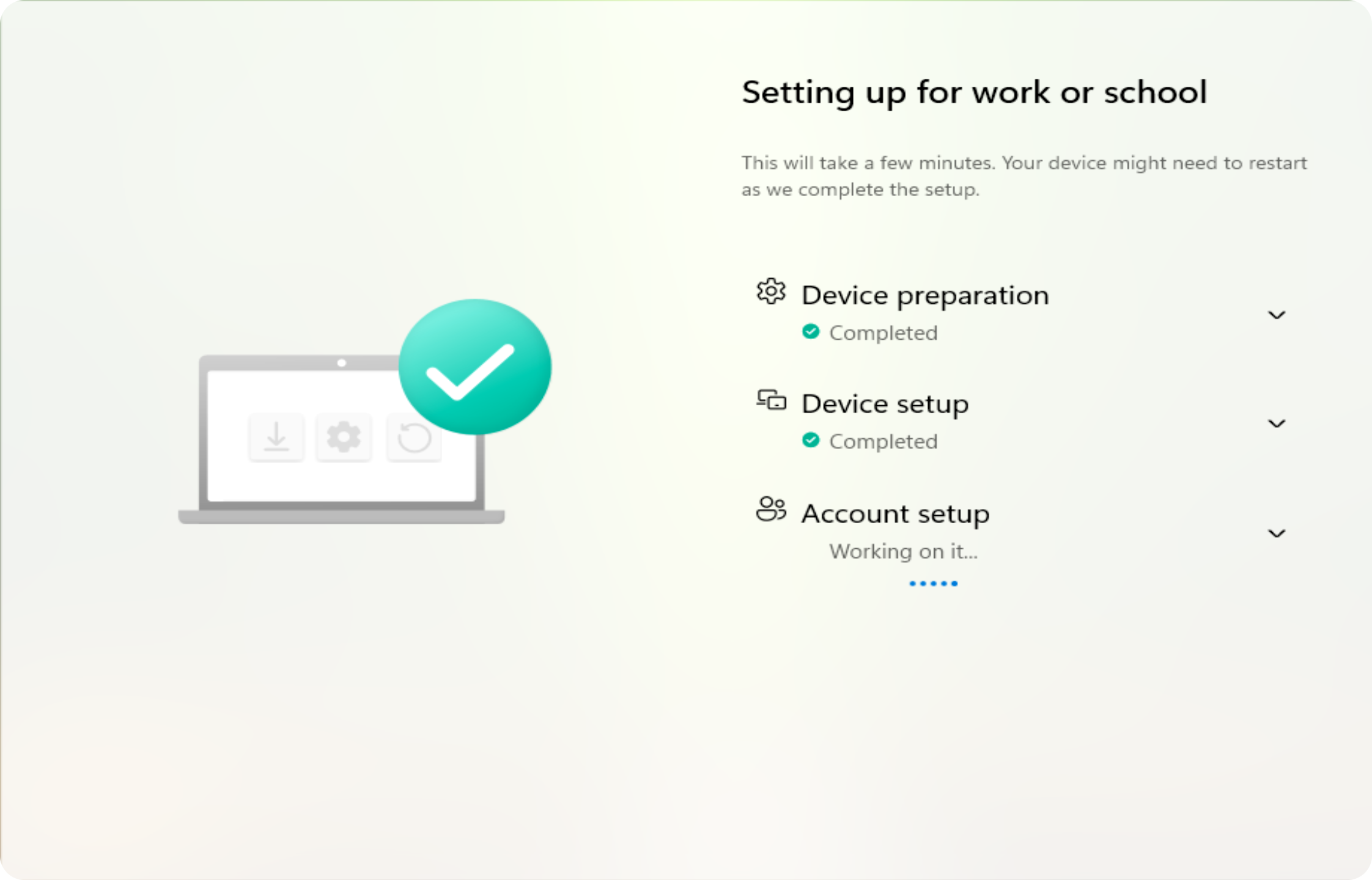
Windows continues setting up your work account. Please wait.
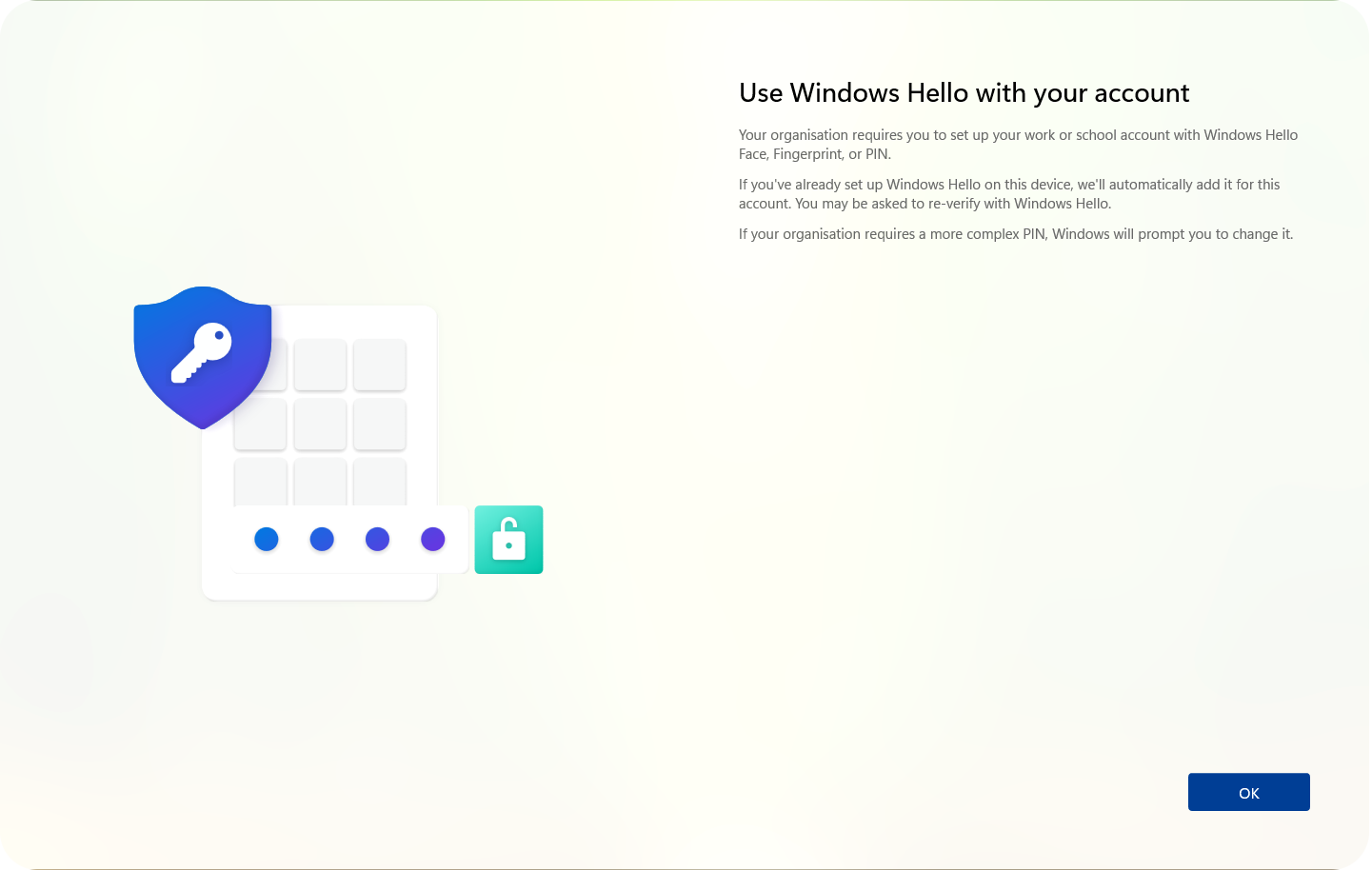
You can set up fingerprint sign-in now or skip this step. On SCC laptops, the fingerprint sensor is built into the power button.
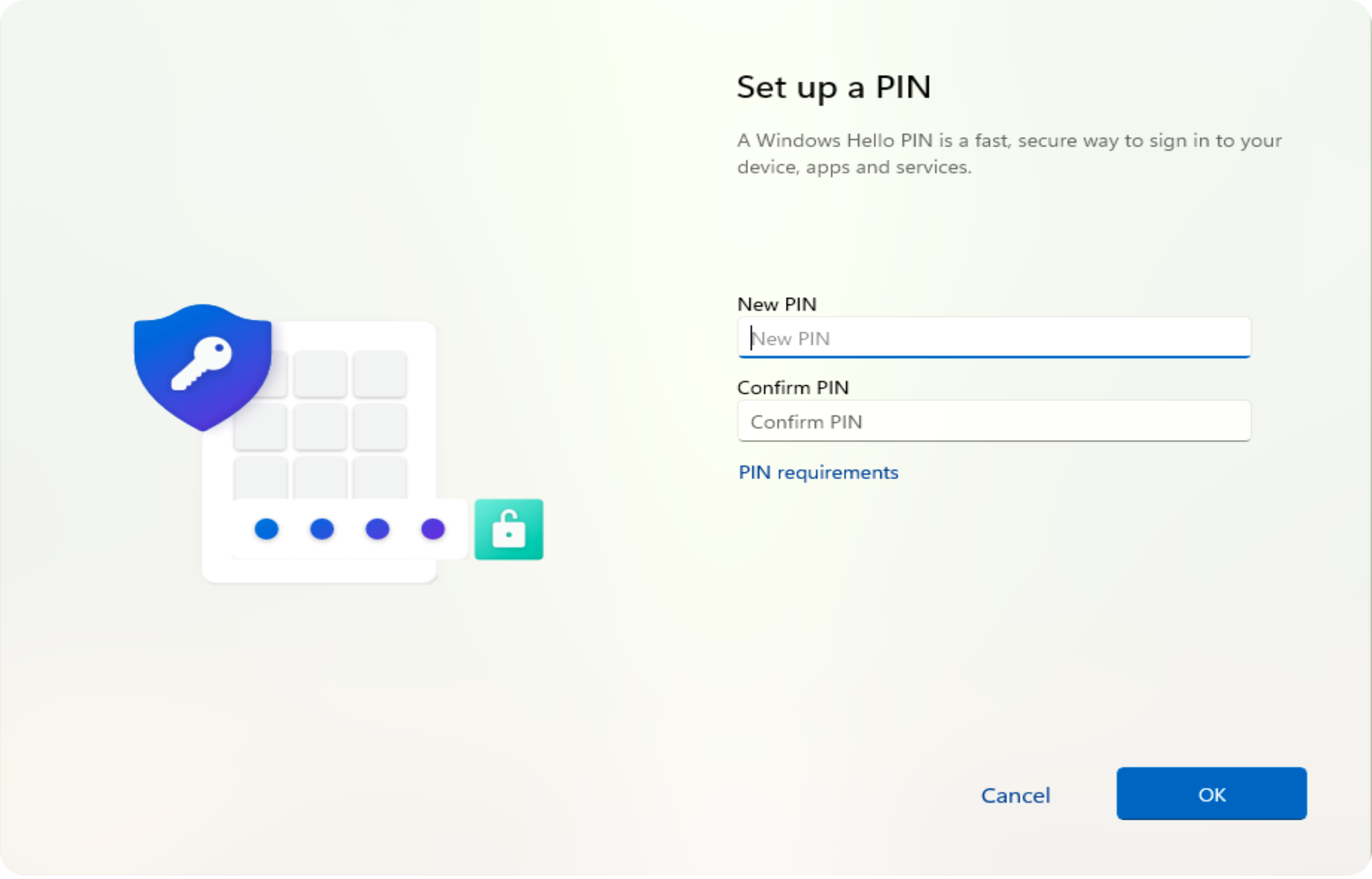
You will be asked to create a PIN for signing into your laptop.
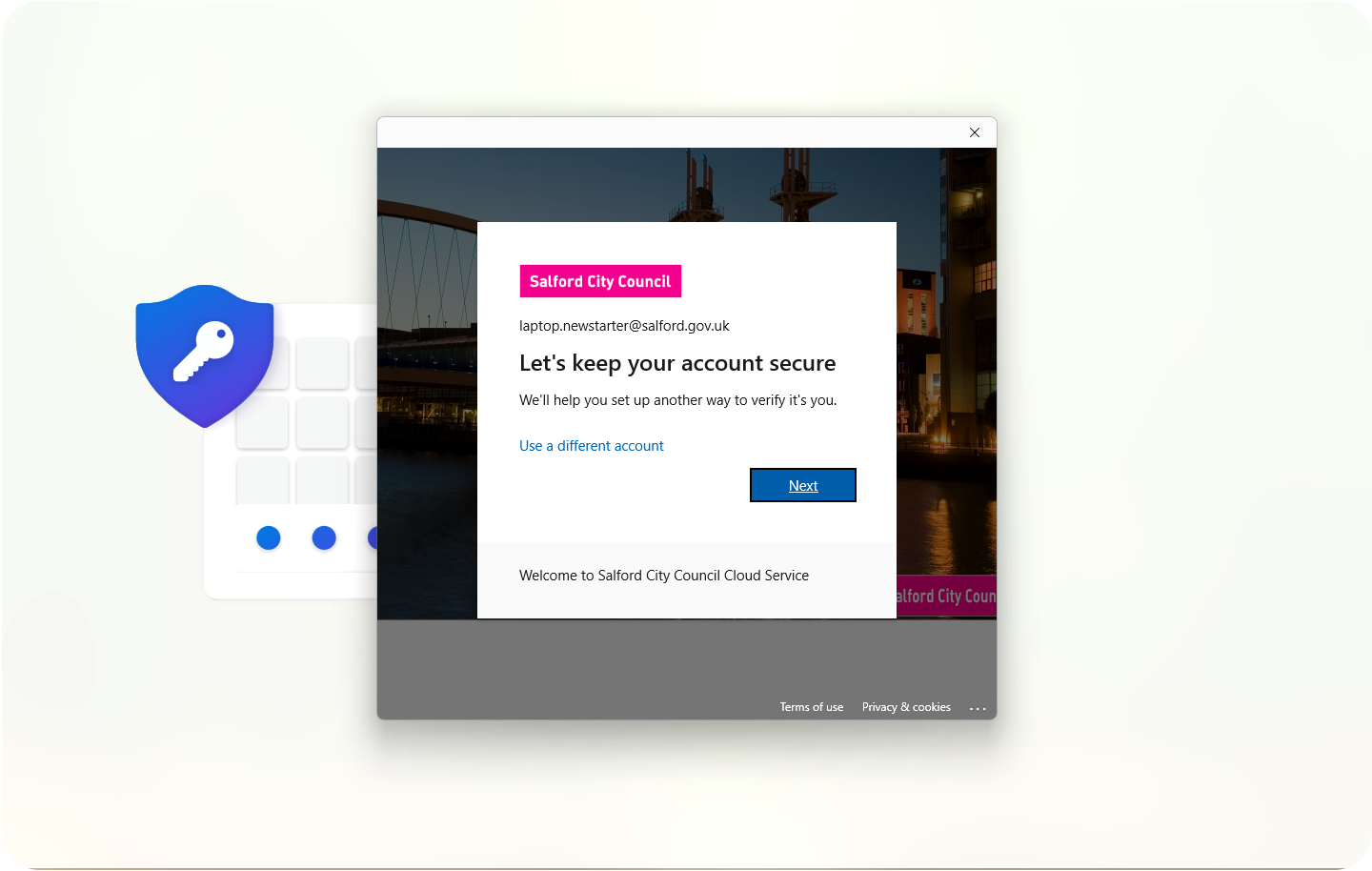
You will see a message about setting up another way to verify it is you. Select Next to continue.
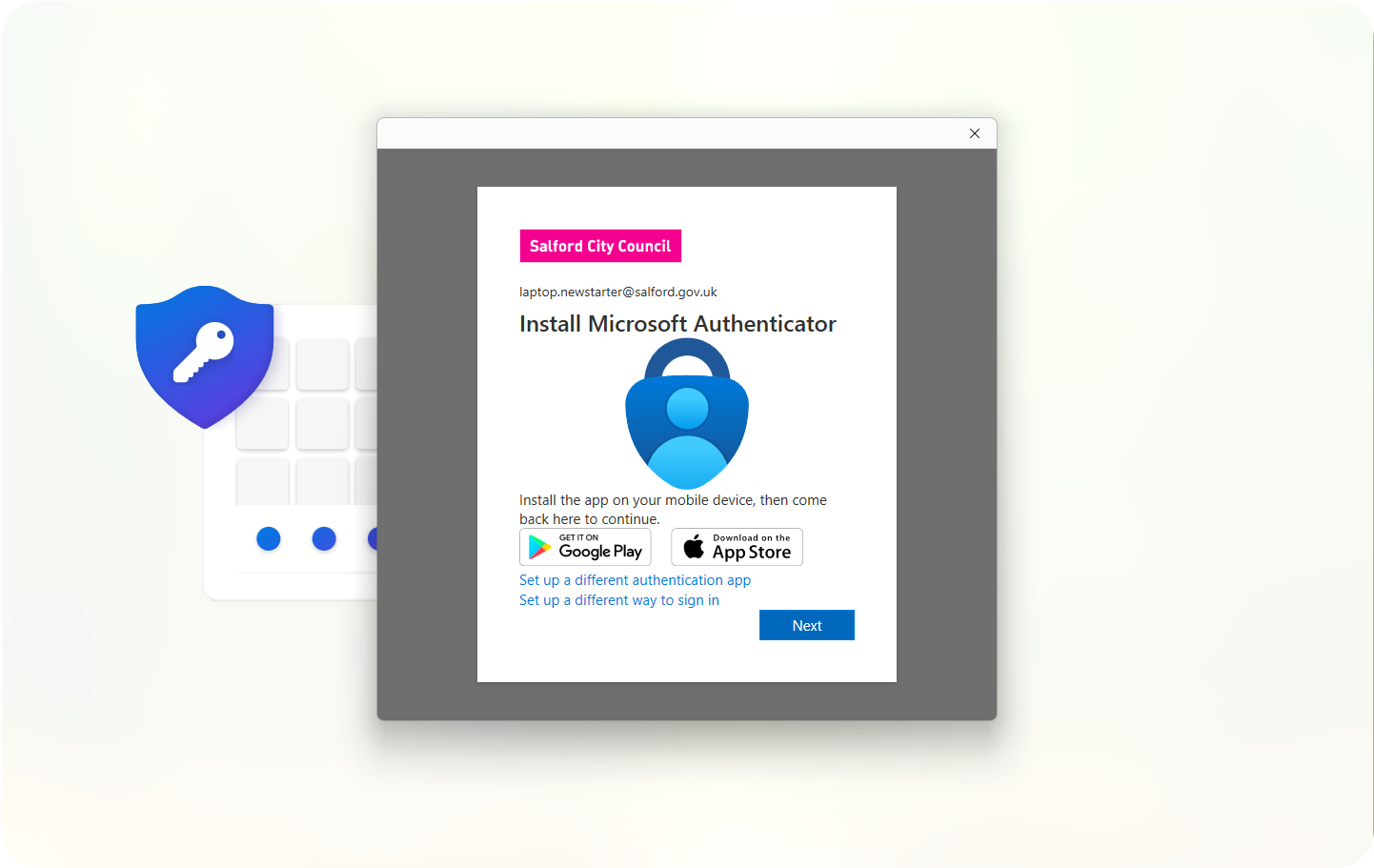
Install the Microsoft Authenticator app on your phone.
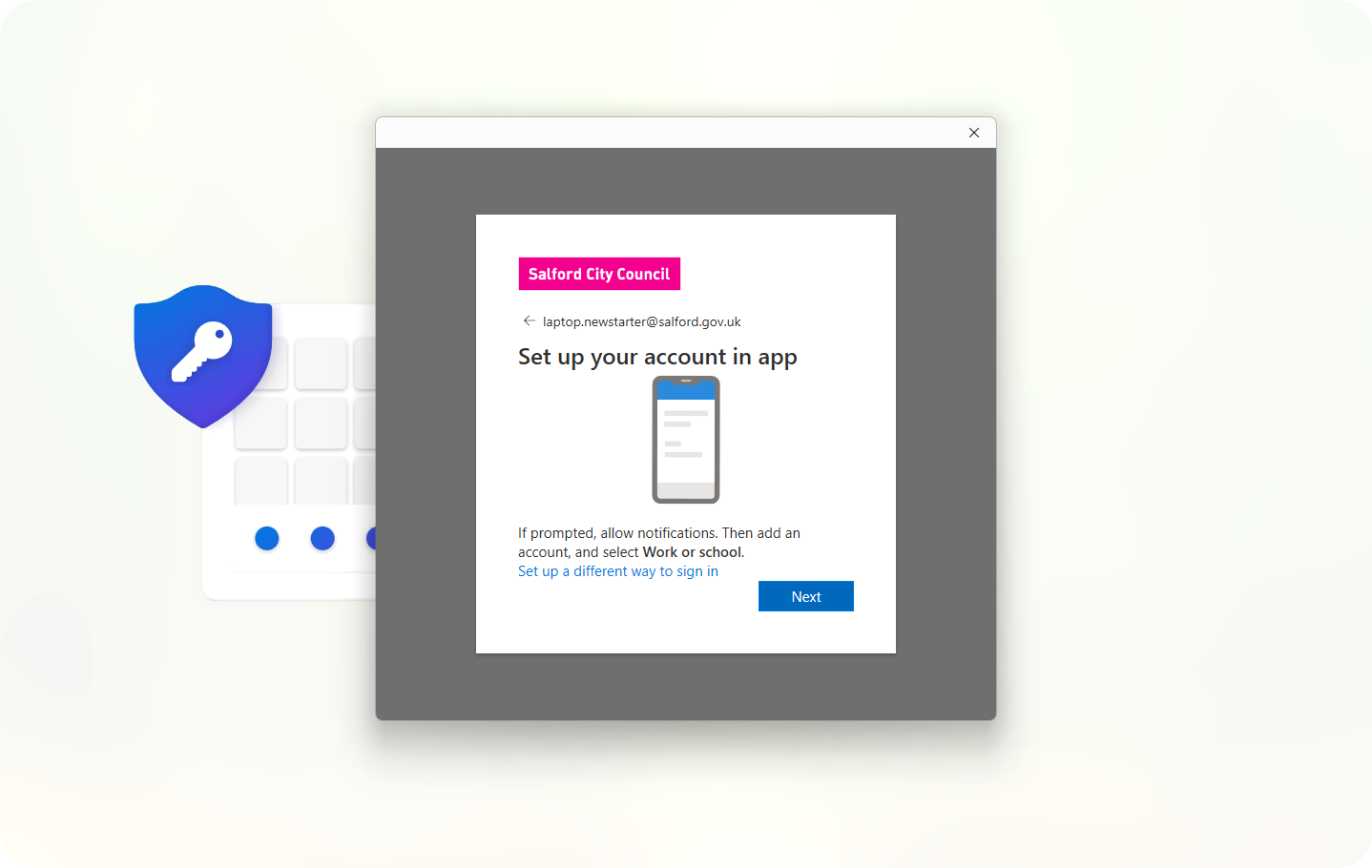
Open the Authenticator app and follow the on-screen steps. Select Next when ready.
Use the Authenticator app to scan the QR code shown on screen.
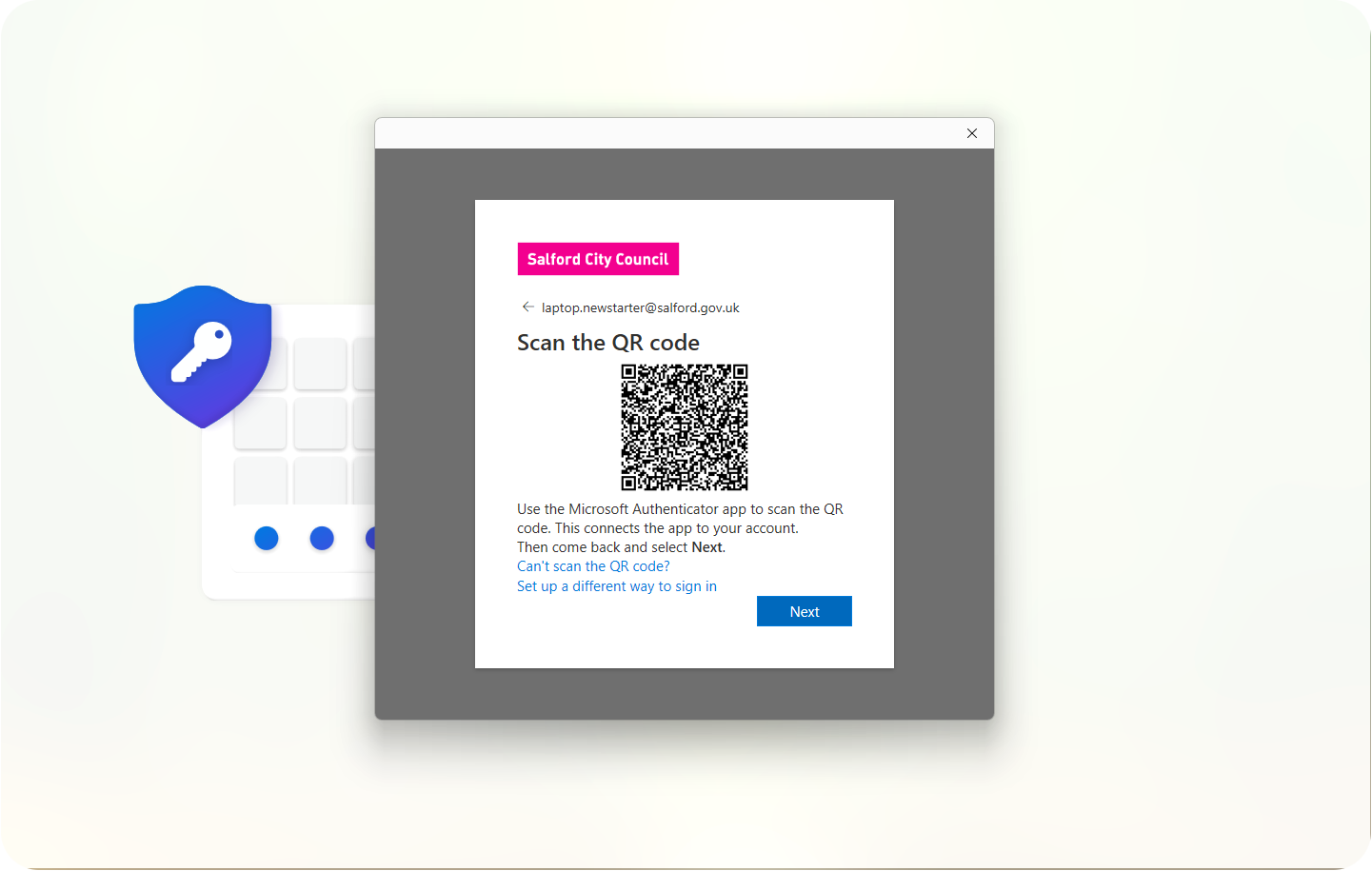
Add your mobile phone number when prompted. Once added, MFA setup will complete.
Return to Windows and complete your PIN setup.
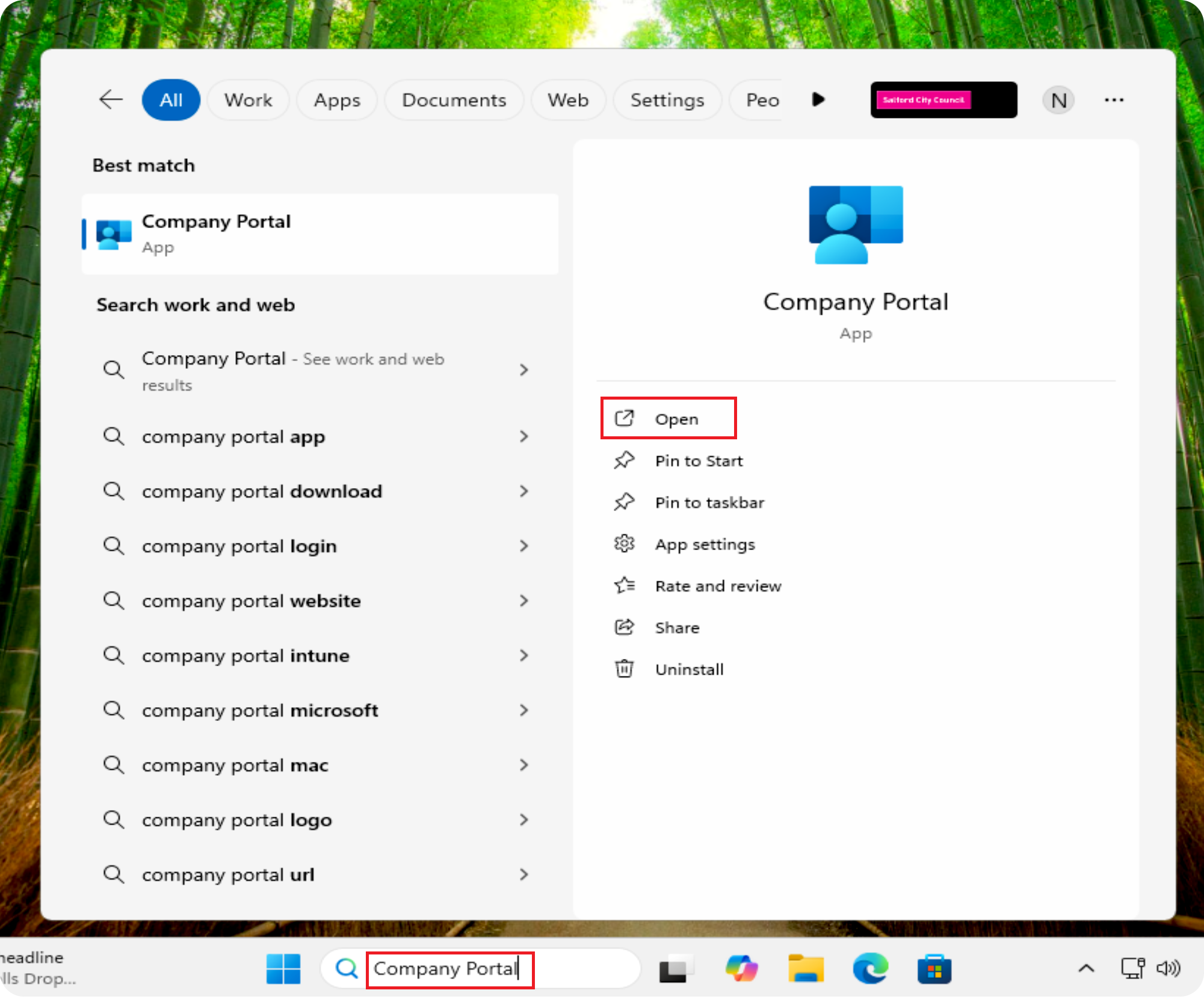
Use the taskbar search to find and open Company Portal.
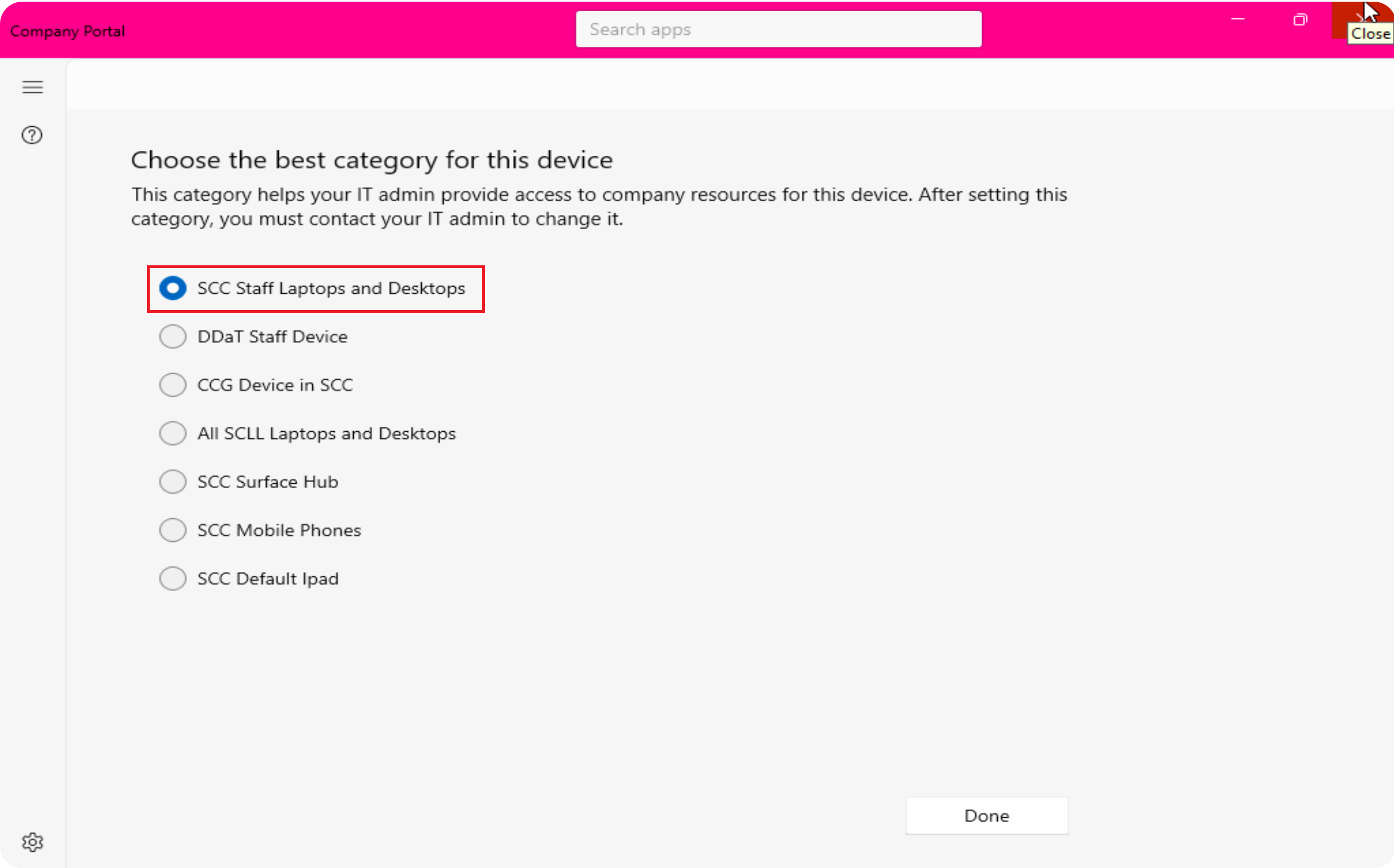
When prompted, select:
In Company Portal, browse and install the apps you need, including SCC-approved software and printer drivers.
If required, also install the Ricoh Printer Drivers for office printing.
Select an app and click Install. Apps may take a few minutes to appear or install.
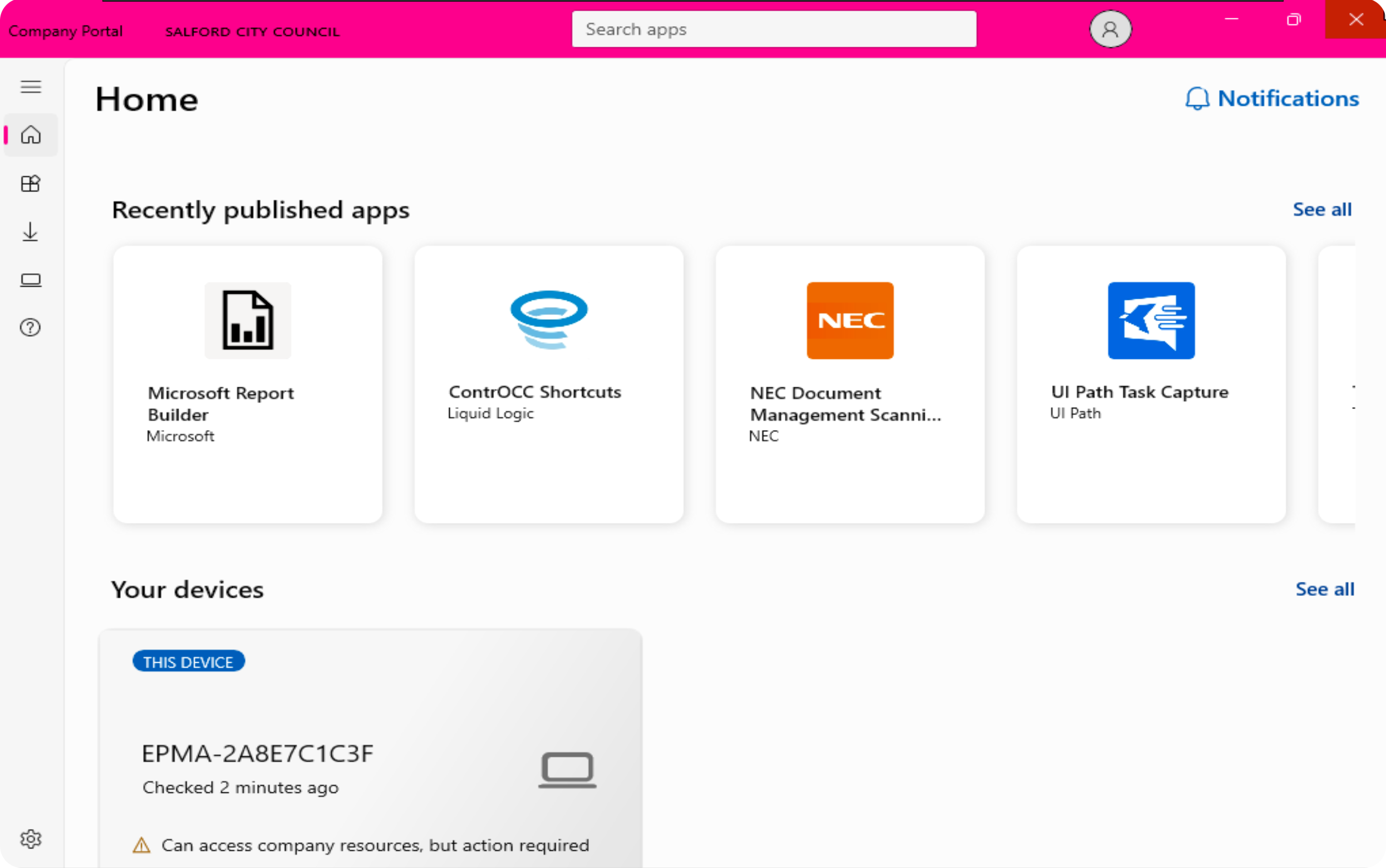
Your SCC Windows laptop is now set up and ready to use.
Keep the laptop powered on while any remaining apps finish installing.
Guide version: v1.2
This is normal. Let the laptop power back on and continue setup.
If the SCC logo is not shown, the laptop may not be enrolled correctly. Contact IT Support before continuing.
Yes. Fingerprint setup is optional and can be added later from Windows settings.
You can reset your PIN after setup using the on-screen sign-in options or by contacting IT Support.
Authenticator is required to keep your SCC account secure and verify it is really you.
Yes. You can complete setup using your home Wi-Fi.
Connect to SCC-Setup. IT Support can provide the password if needed.
Some apps take time to appear or install. Keep the laptop powered on and connected to the internet.
Search for Company Portal using the Windows search bar and open the app.
Raise an application request in Rubix. Include the app name, a link to the app, whether it is free or licensed, and a brief business justification.
If you experience issues during setup, please log an IT Support ticket or call 0161 793 3993.
Return to the SCC Device Portal to access other setup and support guides.